Convert video to GIF: settings that keep it small and sharp
To convert a video to GIF, trim the clip to a few seconds, shrink it to 480 pixels wide or less, lower it to 10 to 15 frames per second, then export with a color palette built from that clip. A free browser converter covers the basics, and FFmpeg does all of it in one command when you want control over each setting.
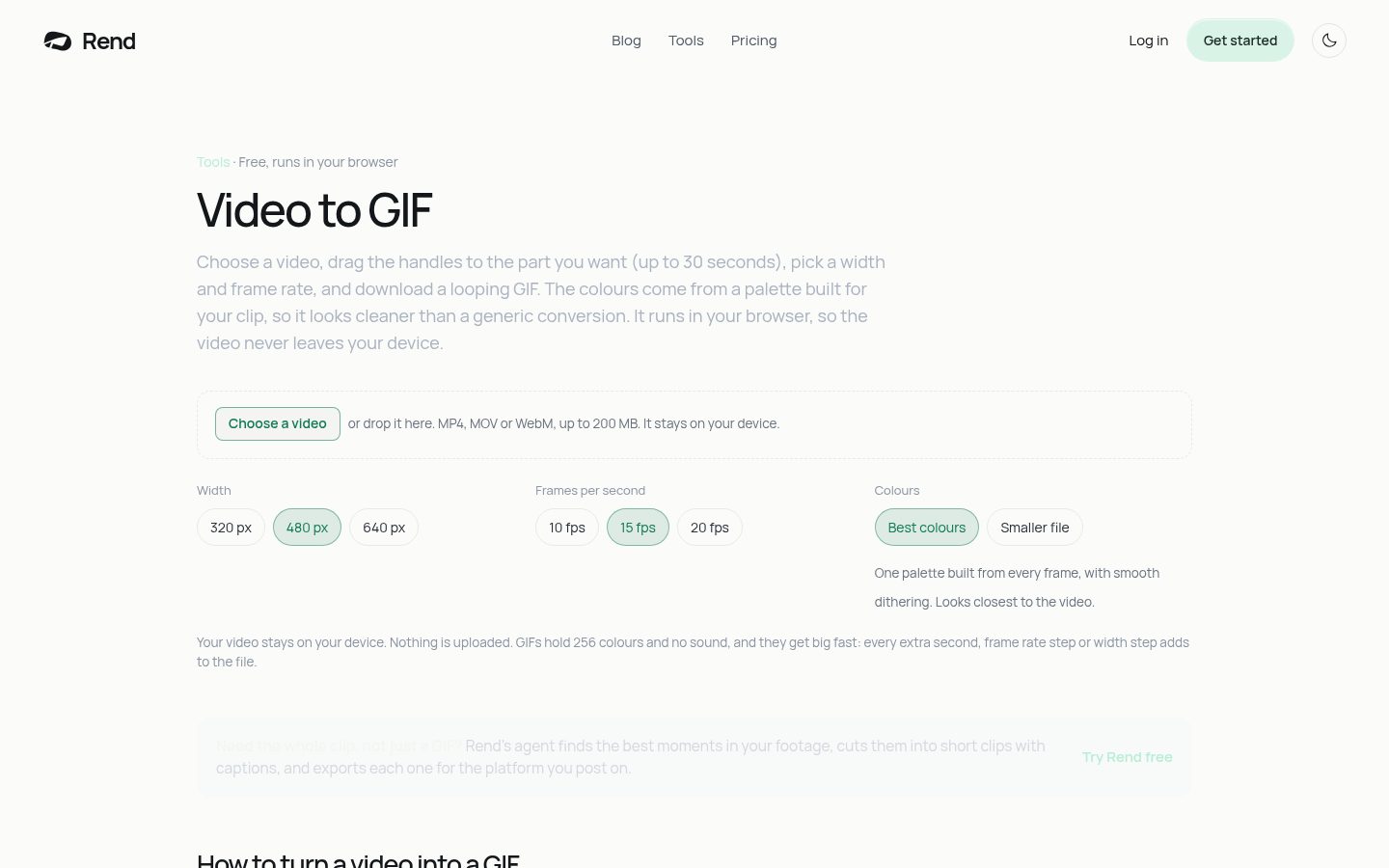
Rend's free video to GIF tool does those steps in your browser: drag the handles to the part you want (up to 30 seconds), pick a width and frame rate, and download a looping GIF with a palette built for your clip. Nothing is uploaded and there is no sign-in.
Most ugly or oversized GIFs come from skipping one of those four steps. The converter you pick matters less than the settings you give it.
What is the fastest way to convert a video to GIF?
The fastest way to convert a video to GIF is a browser converter. You trim the clip, set the size and download the GIF. Rend's video to GIF tool makes the GIF on your device, so the video never leaves it. Biteable's video to GIF converter runs in the browser, lets you trim, and says it exports a looping GIF with no watermark. FreeConvert has separate pages for video to GIF, MP4 to GIF, MOV to GIF and a GIF compressor.
Every converter follows the same order:
- Pick the 2 to 6 seconds that carry the point. A GIF of a whole 40-second clip will be huge and nobody will watch it to the end.
- Load the video, trim it to that moment, and crop to the subject. Empty desktop or background around the action costs pixels and adds nothing.
- Set the width and frame rate (the table below gives starting points).
- Export and replay the GIF. Check the jump from the last frame back to the first, whether small text is readable, and the file size. If it is too big, run it again with lower settings.
Before you upload client footage or anything unreleased, read the converter's own pages for file size limits and how long it keeps your uploads. Those rules differ by site and change over time. A tool that converts in the browser, like Rend's, avoids the upload entirely.
How does converting a video to GIF work?
A GIF is a series of still images played in order, and each frame can use at most 256 colors. A video frame can hold millions of colors. So the converter does three jobs: it samples frames from the video at the frame rate you chose, scales each one to your width, and maps every pixel to the nearest color in a 256-color palette.
Dithering is the trick that hides the missing colors. The converter scatters dots of nearby colors so a gradient reads as smooth from a distance. Dithering makes the GIF look better and also makes it bigger, because scattered dots compress worse than flat areas.
Two things get lost on the way. Sound goes first, since the GIF format has no audio track. Efficiency is the second. Modern video formats store mostly the changes between frames, while GIF compression is far simpler, so the same clip is usually much larger as a GIF than as an MP4.
Which settings decide GIF quality and file size?
GIF file size depends on five things: length, width, frame rate, number of colors and how much moves in the shot. You control the first four. The fifth is about the footage. A screen recording with a still background compresses well, while handheld phone footage, where every pixel shifts every frame, compresses badly.
The math is easy to run in your head. Total frames equal seconds times frames per second, so 6 seconds at 15 fps is 90 frames, and at 10 fps it is 60. Halving the width (and the height with it) leaves a quarter of the pixels in every frame. Those two levers do more than any compression setting. A 30-second screen recording at 1920 by 1080 and 30 fps is 900 frames of about 2.07 million pixels each. Cut to the 4 seconds that matter, scaled to 640 by 360 at 10 fps, it is 40 frames of about 230,000 pixels, roughly 200 times fewer pixels to encode.
These are our starting points, not platform limits:
| Where the GIF goes | Length | Width | Frame rate | Palette |
|---|---|---|---|---|
| Chat reaction or team channel | 2 to 4 s | 320 to 480 px | 10 to 12 fps | 256 colors, dither on |
| Product feature on a web page | 4 to 8 s | 600 to 800 px | 12 to 15 fps | 256 colors, palette from changed pixels |
| Email header or banner | 2 to 4 s | 600 px | 8 to 10 fps | 64 to 128 colors |
| Software or app screen recording | 5 to 10 s | Full width of the area shown | 10 fps | 128 to 256 colors, dither off |
| Fast motion (a pour, a spin, a sports play) | 2 to 4 s | 360 to 480 px | 15 to 24 fps | 256 colors, dither on |
Screen recordings get dither off because flat interface colors look worse with scattered dots, and the file shrinks too. Fast motion needs more frames to look smooth, so it gives up width to stay small. Live footage of people, food or products needs dither on, or skin and shadows turn into hard color bands.
How do you convert video to GIF with FFmpeg? A worked example
FFmpeg is a free, open source command line tool, and it gives better GIFs than most converters because it can build a custom palette for your exact clip. Here is a full example.
The situation: you have a 45-second phone video of a product. The useful part runs from 0:12 to 0:18, where a hand opens the lid. You want a GIF for the product page.
ffmpeg -ss 12 -t 6 -i product.mp4 -vf "fps=12,scale=480:-1:flags=lanczos,split[a][b];[a]palettegen=stats_mode=diff[p];[b][p]paletteuse" -loop 0 lid.gif
What each part does:
-ss 12 -t 6starts at 12 seconds and keeps 6 seconds.fps=12samples 12 frames per second, so the GIF has 72 frames.scale=480:-1:flags=lanczossets the width to 480 pixels, keeps the shape, and uses a sharp scaling filter.palettegen=stats_mode=diffbuilds the 256-color palette from the pixels that change, which favors the moving hand and lid over the still background.paletteusemaps every frame to that palette.-loop 0makes the GIF loop forever.
If the file comes out too big for your page, change one setting at a time and export again. Drop to fps=10 (60 frames). Narrow to scale=400:-1. Swap paletteuse for paletteuse=dither=bayer:bayer_scale=5, which uses a patterned dither that compresses better. Last, cut colors with palettegen=max_colors=128. Shorter and narrower first; fewer colors last, because that is where quality drops fastest.
What mistakes make a GIF look bad?
The same handful of mistakes cause most bad GIFs:
- Converting the whole video. Trim to the moment first, and the file shrinks before any other setting touches it.
- Keeping 30 or 60 fps. Motion looks smooth at 12 to 15 fps in a GIF, and the higher rates double or quadruple the frame count.
- Using a generic palette. A fixed web palette ignores your footage, so skin tones and skies band. Build the palette from the clip.
- Leaving in fades and soft gradients. A fade-to-black needs many shades of one color and bands badly. Cut on a hard edit instead.
- Relying on sound or small text. The GIF is silent, and captions sized for a 1080-pixel video become unreadable at 320 pixels wide.
- Fixing size only at the end. A lossy GIF compressor after export helps a little, but cutting length, width and frame rate first does far more.
When should you use an MP4 instead of a GIF?
Use a muted, looping MP4 whenever the place you are posting accepts video. The MP4 will be smaller and sharper for the same clip, for the reasons in the section on how conversion works. GIF earns its place where only images are accepted, and you can check that in the tool's upload settings.
For ads, use video files in the sizes each platform asks for. Our guide to video ad sizes for each platform covers the formats, and the ad size and safe-zone checker shows where captions and buttons will sit.
How do you prepare the clip before you convert it?
A GIF is only as good as the few seconds you feed into it, and that part is editing. Because the GIF is silent, the words need to be on screen, at a size that survives being shrunk to 480 pixels.
This is where Rend fits. Rend is an AI video agent: you say what you want, and it does the editing on a timeline you can open and change by hand. For a GIF, a request might be "cut the 6 seconds where she opens the lid, add large captions from what she says, and make it square." Rend cuts on exact words from the transcript, and its word-timed captions stay editable in your own font and look. A brand kit keeps the same caption style on every clip you make.
You can send clips straight from your phone, by chat, email or a web form. Projects run in a browser editor with no install and no graphics card needed. Editing is free, and you pay only when Rend renders or generates something.
Be clear on the split of jobs. If you already have the exact clip, a converter or the FFmpeg command above is quicker. Rend is worth opening when the moment is buried in a longer video, needs captions, or needs a different shape. Then export the MP4 and run the GIF step. For more on the editing side, see how to add captions to a video, the caption style previewer, and how to repurpose a long video into Shorts, which uses the same pick-the-moment approach.
If your GIFs start as longer videos that need cutting and captions, create a free Rend account and ask the agent for the clip. Plan details are on our pricing page.
FAQ
Can a GIF have sound?
No. The GIF format has no audio track, so every converter drops the sound when it makes the GIF. If the speech matters, burn captions into the clip before converting, or post a muted MP4 where video is allowed.
Is it safe to make a GIF from a private video?
It depends on whether the converter uploads your file to a server. Rend's video to GIF tool makes the GIF in your browser, so the video never leaves your device. FFmpeg also runs on your own computer. For other online converters, check their pages for how they handle uploads, and convert only files you own or have permission to use.
How do I make a GIF loop forever or play only once?
The loop setting is stored inside the GIF file. In FFmpeg, -loop 0 loops forever and -loop -1 plays the GIF once. Online converters usually loop by default, and Biteable's converter says it exports a looping GIF.
Can I turn a GIF back into an MP4?
Yes. Biteable and FreeConvert both have GIF to MP4 tools. The MP4 will be smaller than the GIF, but the color and detail lost during the GIF conversion will not come back, so keep your original video.
How long can a GIF be?
The GIF format does not set a practical length limit, but every site you upload to sets its own size limit. Long GIFs grow fast, because every extra second adds a full set of frames. If you need more than about 10 seconds, a looping MP4 is usually the better file.
Is converting video to GIF free?
Yes. FFmpeg is free and open source, and Biteable's online converter is free with no watermark, according to its page. In Rend, editing the clip is free, and you pay only when Rend renders or generates something. Our pricing page lists the plans.