Video From Photos With AI: Make a Slideshow That Moves
To make a video from photos with AI, pick 15 to 30 of your best images, put them in story order, and give an AI video tool a one-line brief with the length, mood and music you want. It adds gentle motion to each photo (slow push-ins and pans), times the cuts to the music, adds titles or captions, and exports. For a quick family video, Google Photos' highlight videos or an iPhone Memory does this for free. For anything you want to control (a product video, a tribute, a listing, a recap for a client), use a tool that leaves the result editable.
The difference between a slideshow people skip and one they watch twice is almost never the software. It's which photos you chose, the order, and how long each one stays on screen.
How to make a video from your camera roll in Rend, step by step
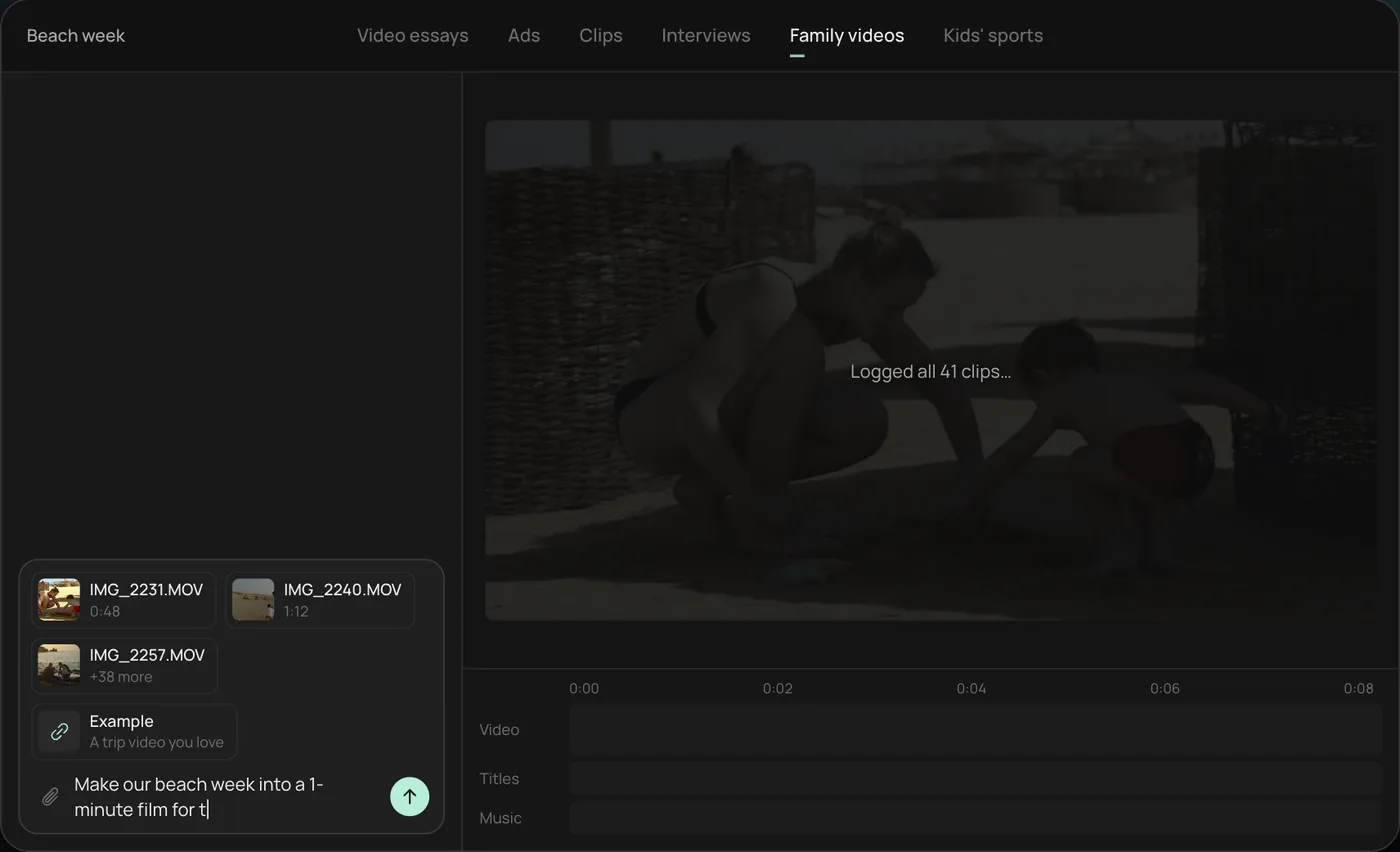
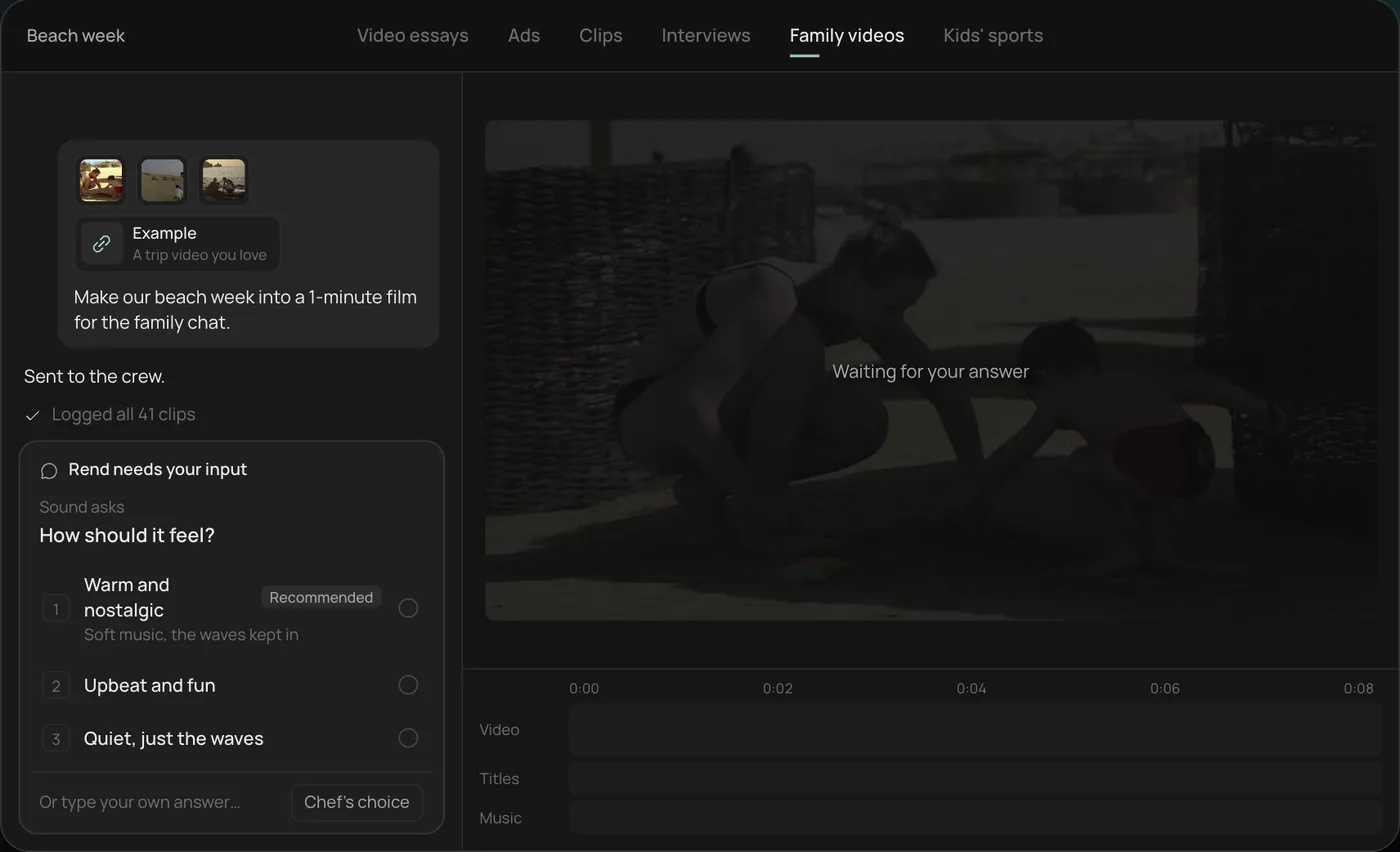
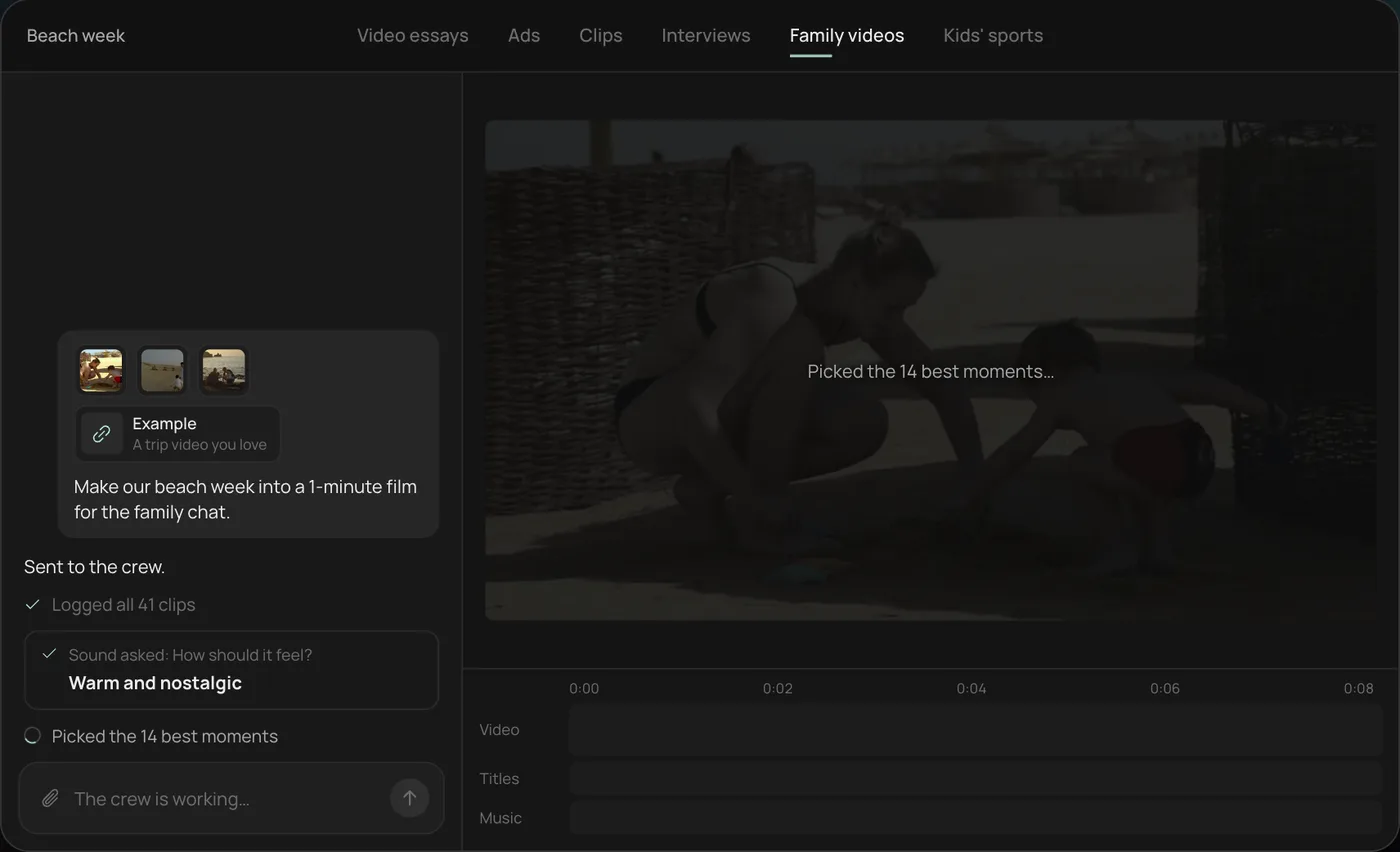
These screenshots are from Rend's demo of turning 41 beach week phone clips into a 1-minute film; your own project works the same way.
1. Drop your phone clips. Add the clips straight from your camera roll, plus an example video if you have one, and say what you want in one line.
2. Pick the feel. Rend asks one question, here how the film should feel, and recommends warm and nostalgic.
3. Let the crew pick the moments. Rend logs every clip and picks the best moments, checking off each step in chat.
4. Watch the finished film. A 1-minute film cut to warm piano with a "Summer 2026" title lands on a real timeline, video, title and music each on their own track.
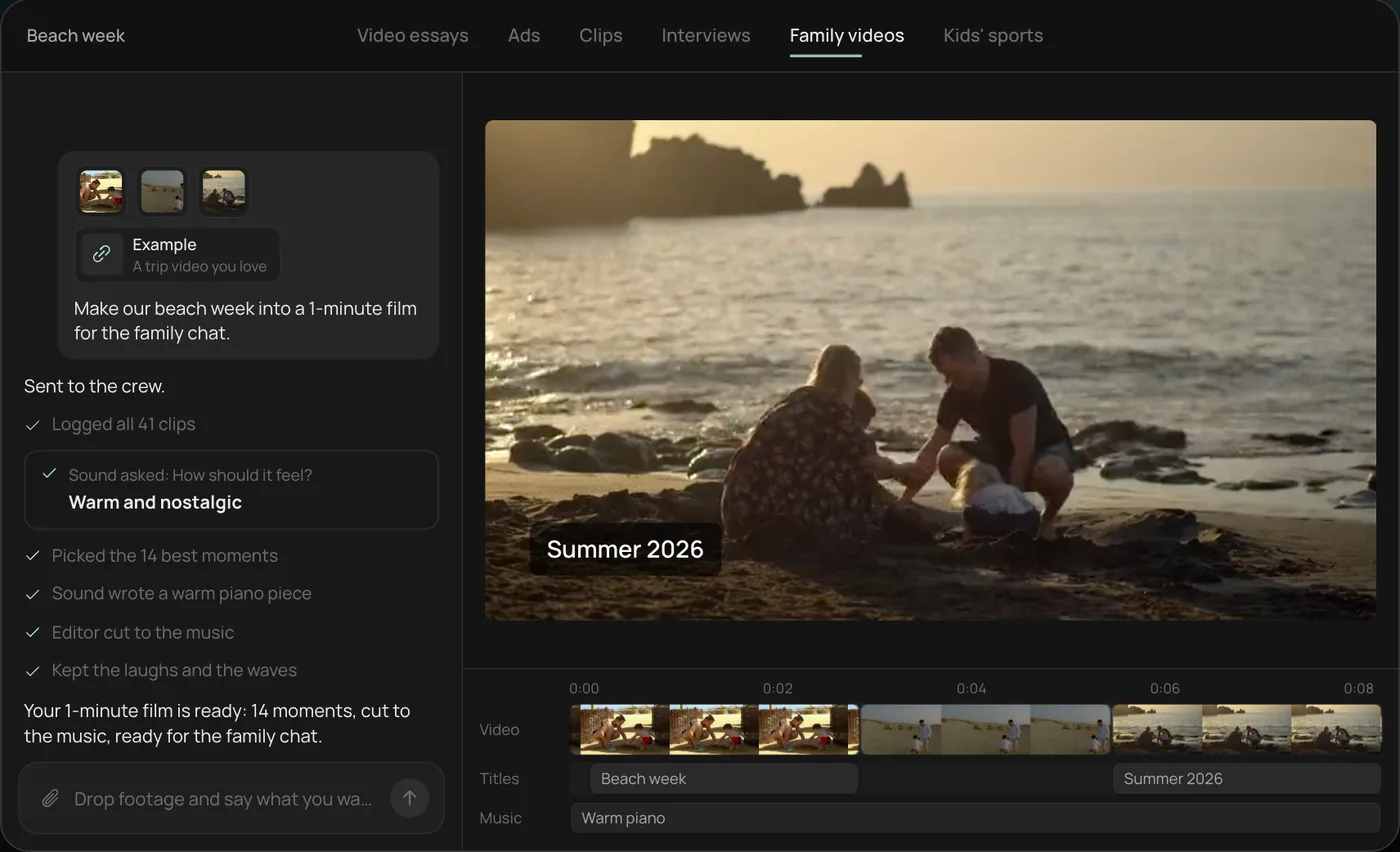
From there you can open the timeline and change anything by hand, share a review link for notes, or export. Start a free Rend project to try it on your own footage.
Free options that are already on your phone
| Tool | What it does | Good for | Limits |
|---|---|---|---|
| Google Photos highlight videos | Pick photos and clips or start from a template; adds music and text | Family events, trips | Few controls over timing and motion |
| iPhone Memories (Photos app) | Auto-builds videos from your library with music and looks | Fast and private | You pick from what it suggests |
| iMovie | Manual photo slideshow with Ken Burns motion | More control on Apple devices | You do the editing |
| Canva, Adobe Express | Template-based slideshows | Branded social posts | Template look |
Google Photos renamed its old "movies" to highlight videos and added templates with music and custom text. If you just want a birthday montage tonight, start there.
When you want more than a template
Templates break down when the video has a job: sell a house, launch a product, honor someone, recap a season for a team. You want control over order, pacing, text and sound, and you want to change things after you see it.
That's where an AI video agent fits. In Rend, you send the photos (in chat, by email or a web form, straight from your camera roll) and say what you want. A crew of agents orders and paces them, adds motion, titles and captions, makes original music or narration in a voice you approve, mixes it, and leaves everything on a timeline you can open and change. It can also generate a missing shot, like an exterior at dusk when you only have daytime photos, and research a product page to write the on-screen text.
Editing is free; you pay when it renders or generates. See pricing.
How to pick and order the photos
This is the part that matters, and it's the part tools can't fully do for you.
Cut hard. If you have 200 photos, 25 make a better video than 80. Each one is a beat. Too many beats and nothing lands.
Lead with your best image. The first two seconds decide whether anyone keeps watching. Don't open on a title card or the least interesting photo just because it's first in time.
Vary the shot size. Alternate wide, medium and close. Five group shots in a row read as one long photo. A wide of the beach, then a close-up of a hand with sand, then a face, reads as a scene.
Group by moment, not by date. Chronological is fine as a spine, but within each part, order for flow.
End on a feeling. The last photo should be the one you want people to remember: a laugh, a quiet look, the product in use, the house lit up at night.
How long each photo should stay on screen
| Video type | Seconds per photo | Why |
|---|---|---|
| Social reel, upbeat | 0.5 to 1.5 | Matches fast music, keeps scroll attention |
| Product or listing video | 2 to 3 | Time to read a caption or see a detail |
| Family or event recap | 2 to 4 | Time for faces to register |
| Tribute or memorial | 4 to 6 | Room to breathe |
The rule of thumb: the more people need to read or feel, the longer the hold. Cut on the music's beats where you can.
Motion: the difference between a slideshow and a video
A still photo on screen for four seconds feels dead. A slow push-in, a pan across a group, or a subtle zoom out from a detail makes it feel filmed. Keep the motion slow and consistent; a different flashy transition on every cut is the most common sign of a cheap slideshow. Straight cuts or soft dissolves are almost always better than spins and page curls.
AI can go further now: turning a still into a few seconds of real movement (hair in wind, water moving, a slight head turn). Use that sparingly. On faces, especially of people the viewer knows, generated motion can look wrong in a way that's hard to unsee. On landscapes, food, products and rooms it usually works well.
A 60-second template you can copy
Use this as a brief for any tool, or as a checklist doing it by hand.
VIDEO: [what it's for, who watches]
LENGTH: 60 s, [9:16 for Reels/TikTok or 16:9 for YouTube/TV]
PHOTOS: 20-24, attached in rough order

0:00-0:04  Best photo, slow push-in. No title yet.
0:04-0:08  Title over a wide shot: [title, under 6 words]
0:08-0:40  Main section: 12-15 photos, 2-3 s each,
           alternate wide/medium/close, cut on beats
0:40-0:52  Slower section: 3-4 photos, 3-4 s each
0:52-0:60  Final photo, held. End text: [line or CTA]

MUSIC: [mood], builds gently, ends on a soft hit
TEXT: [captions on/off], font [your brand or style]
For a product video, swap the slower section for three detail photos with one short caption each, and end on the product with a price or call to action. Our ecommerce product video ads post has more on that. For listings, see real estate listing videos.
Sound does half the work
People remember a photo video by its music. Pick the track before you finalize the order, then move photos so the big changes (a new place, a new person, the reveal) fall on the music's changes. A quiet stretch in the song is a good spot for the slower section. If there's narration or a toast, lower the music under the voice so every word is clear, and let it come back up between lines. In Rend, narration, music and sound effects sit on separate tracks with that ducking done for you, and you can swap the music without rebuilding the edit.
Adding text and captions
Short on-screen text carries a photo video. Keep each line under eight words, give it at least two seconds, and keep it out of the bottom fifth of a vertical frame where platform buttons sit. Our video ad size checker shows the safe zones. If there's narration, add word-timed captions; caption styles lets you preview looks before you pick one.
FAQ
What is the best free way to make a video from photos?
Google Photos highlight videos on Android or the web, and Memories or iMovie on iPhone. Both add music and simple motion for free.
Can AI make a video from photos automatically?
Yes. Google Photos and iPhone Memories build one from your library. Rend builds one from photos you send and a brief, with control over order, pacing, text and music.
How many photos do I need for a one-minute video?
About 20 to 30 at 2 to 3 seconds each. Use fewer, held longer, for slower or emotional pieces.
Can AI turn a single photo into a moving video?
Yes, AI can animate a still into a few seconds of motion. It works best on scenes, products and landscapes; be careful with faces of people the viewer knows.
What music can I use in a photo slideshow?
Use music you have rights to for where you're posting. Rend makes original music for each video. For other tools, check the track's license.
If you've got a folder of photos and a reason to share them, start free on Rend, send them over, and say what the video is for. For more ways to combine media, see the video collage maker guide.