Opus Clip vs CapCut: Who Picks Your Clips Decides It (2026)
OpusClip is the better pick when you have long recordings and want software to choose which moments become clips. CapCut is the better pick when you already know the moment (or shot the video vertical in the first place) and want fine control over how it looks. Both can now auto-cut a long video, so the real question is who decides what's worth posting, and how much fixing you're willing to do afterwards.
We build Rend, which comes up near the end as a third option, so weigh our view accordingly. OpusClip and CapCut details were read from their official pages on November 22, 2026. Prices and plans change, so confirm before you buy.
Feature lists won't tell you what your week looks like in each tool. Below is a decision table by situation, then the same 45-minute podcast episode taken through both, step by step, with the spots where your review time actually goes.
The decision table
| Your situation | Pick | Why | What you'll still do by hand |
|---|---|---|---|
| 2-hour podcast, want 10+ clips a week | OpusClip | Finding moments in 120 minutes of talk is the slow part, and that's exactly what it automates | Reject weak picks, fix caption typos, tighten starts |
| 45-minute weekly podcast, 4 to 6 clips | Either; OpusClip if you're short on time, CapCut if you're short on budget | Volume is low enough that you could pick moments yourself from the transcript | In OpusClip: trimming. In CapCut: the picking and the cutting |
| 10-minute talking-head video | CapCut | You can scrub 10 minutes in the time it takes to upload and process; you'll probably already know your best line | Captions styling, reframing, hook text |
| Shot-for-vertical TikTok | CapCut | There's nothing to find. The clip is the video, and the work is pacing, text, sound and effects | All of it, which is the point |
| Ads for a store | CapCut, or Rend if you need many variants | Ads are built, not found: hook, product shot, offer, size per placement | Script, hook variations, sizes, legal checks |
| Client podcast with brand rules (fonts, colors, intro) | OpusClip Pro or CapCut, depending on how strict the rules are | OpusClip has brand templates by plan; CapCut gives you total manual control | Checking every clip against the brand guide |
If your row is "2-hour podcast," try OpusClip. If it's "shot-for-vertical," CapCut. The middle rows need the three questions below.
What each tool actually is
OpusClip is a clipper. You give it a long video, it finds moments, cuts them, reframes them vertical, captions them, and on paid plans gives each a virality score. Its help center says it charges 1 credit per minute of the original video and supports videos up to 10 hours long.
From the pricing page, read today:
| OpusClip plan | Price | What stands out |
|---|---|---|
| Free | $0 | Watermark on animated caption templates, exports up to 1080p with a 3-day limit, media expires after 3 days, 9:16 only, no text and timeline editing |
| Starter | $15/mo | No watermark, virality score, text and timeline editing, 9:16 only, media expires after 29 days |
| Pro | $29/mo | Adds 1:1 and 16:9, a social scheduler, export to Premiere Pro and DaVinci Resolve, 100GB storage, up to 4 brand templates |
| Business | Custom | Unlimited storage and seats |
The help center lists 150 credits a month on Starter.
CapCut is an editor: a multi-track timeline on phone, desktop and browser with templates, effects, text and captions. It also has a long video to shorts tool that cuts an uploaded video into short clips, reframes 16:9 to 9:16 with subject tracking, generates captions you can customize, and opens clips in the editor with "Edit more." That page says it makes shorts "without watermarks." It doesn't state a source length limit.
CapCut's pricing page lists Pro at USD 19.99 a month or 179.99 a year and Ultra at USD 79 a month, and says "displayed pricing is for reference only" with plans varying by region and platform. So check yours signed in.
The honest summary: OpusClip's whole product is built around the picking (scores, scheduler, link imports on paid plans). CapCut's auto clipper is a feature in front of an editor, and the editor is where CapCut is strongest.
The three questions that decide it
How long is the source?
Under 15 minutes, you can find the moments yourself almost as fast as a tool can process them. Past an hour, nobody wants to scrub it, and a clipper starts paying for itself. Remember OpusClip bills on the full source length: a 45-minute episode costs 45 credits even if you only keep three clips. Four 45-minute episodes a month is 180 minutes, which is more than Starter's 150 credits.
Who decides which moments are worth posting?
This is the question most comparisons skip. A clipper's picks are a first sort. It's decent at spotting a clear hook with a complete thought and weak at knowing that your audience loves the tangent about your first job, or that a guest asked you not to post something. If you or your client have strong opinions about which moments matter, you'll be overriding the tool anyway, and then you're paying for picks you don't use.
How much fixing will you do after?
Every clip needs a once-over: does it start on the hook, does it end on a finished thought, are names spelled right in the captions, is the right speaker in frame. In OpusClip that fixing happens in a lighter editor (and not at all on Free). In CapCut you have every tool, so fixes are easy, but you were already doing the cutting.
One 45-minute podcast, both tools
Same source: a 45-minute, two-person podcast recorded in 16:9, and you want five vertical clips for Shorts, Reels and TikTok. These are the steps, not timings. Processing speed depends on the file and the day.
In OpusClip
- Upload the file. This uses 45 credits.
- Wait for processing. You get a batch of suggested clips, each with captions, vertical reframing and, on paid plans, a virality score.
- Review the batch. This is where your time goes. Watch each suggestion and sort into keep, fix, reject. Don't trust the score order: watch some low-scored clips too.
- Fix the keepers in the editor: trim a slow first second, extend a clip that ends mid-sentence, correct caption spellings (guest names, product names, jargon), check the reframe follows whoever is talking.
- Apply your brand template so fonts and colors match.
- Export, or on Pro, schedule straight to the platforms.
What you'll still fix by hand: clips that start a beat before the hook, captions on proper nouns, and the occasional reframe that sits on the listener instead of the speaker. If none of the suggestions contains the moment you know was the best part of the episode, you'll be finding it yourself anyway.
In CapCut, the manual way
- Import the episode into a project and generate captions or a transcript so you can read instead of scrub.
- Find the moments. This is where your time goes. Read or skim the transcript, mark five candidate moments, then listen to each to check delivery.
- Cut each moment into its own vertical sequence. Reframe on the speaker, and for two-person shots, decide whether to split-screen or cut between speakers.
- Style captions, add hook text in the first second, add a sound or music bed if you use one.
- Export each clip.
What you'll still fix by hand: everything, because you made everything. The upside is that the five clips are the five you chose, and they look exactly how you want.
In CapCut, with the long video to shorts tool
Upload from your cloud, Google Drive or Dropbox, preview the generated clips, then "Edit more" on the ones worth keeping. You're now doing OpusClip's step 3 (sorting picks) and CapCut's step 4 (styling) in the same app. Treat its picks as a first sort, the same as OpusClip's, and expect to find some moments yourself.
Using both
A common setup: OpusClip finds and cuts, you download the keepers, and the two or three clips that matter most get finished in CapCut. You pay for OpusClip and still do some CapCut work, but your hand-editing time goes only to clips that deserve it. For a full method of picking and timing clips, see how to cut podcast clips from a full episode.
Where Rend fits, and where it doesn't
Rend is an AI video agent: you send the episode and say what you want ("five vertical clips, the moments where she talks about pricing, my caption style"), and a crew of specialist agents builds them on a real timeline you can open and change.
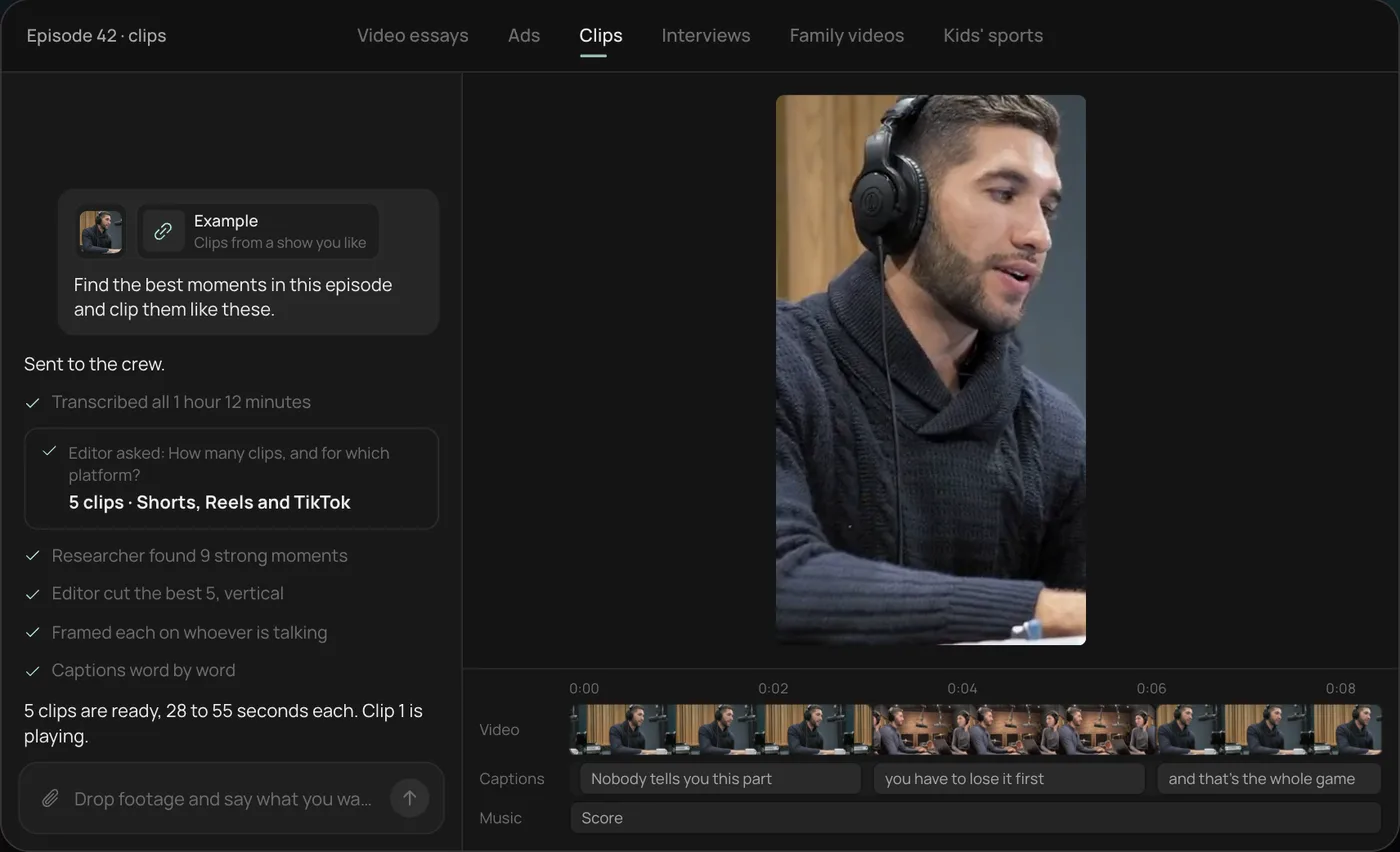
It fits the gap between the two tools in a few specific cases:
- You want to say which moments matter in plain words, rather than accept a clipper's picks or scrub yourself. The agent works from a transcript with speakers and cuts on exact transcript words.
- Captions need to look like yours: word-timed, always editable, in your font and look. A brand kit keeps the caption style, templates and music bed the same every episode. Preview styles with the caption style previewer.
- Clients review the clips. A review link lets them draw on the frame, and the agent reads every note and makes the fix.
- The clips turn into ads: new hooks, sizes and image ads from the same video.
Where Rend isn't the right pick: if you want a big batch of clips from a 2-hour episode with a virality score on each and a built-in scheduler, OpusClip is purpose-built for that. If you enjoy editing with your thumbs and live on trending templates and effects, CapCut is better and cheaper to start. Rend editing is free and you pay when it renders or generates; see pricing.
For deeper one-on-one comparisons, read the OpusClip alternatives roundup and CapCut vs Rend. If your source is a long YouTube video rather than a podcast, repurposing a long video into Shorts covers the full method.
FAQ
Is Opus Clip better than CapCut?
For finding clips in long videos, yes: that's what OpusClip is built for, with virality scores and scheduling on paid plans. For editing a clip exactly how you want it, or for videos shot vertical from the start, CapCut is better. You can also use both: OpusClip to find clips, CapCut to finish the important ones.
Does CapCut have an auto clipper like OpusClip?
Yes. CapCut's long video to shorts tool cuts an uploaded video into short clips, reframes them to 9:16 and adds editable captions. Its official page doesn't mention a virality score or a scheduler, which OpusClip lists on paid plans.
Does OpusClip's free plan have a watermark?
According to OpusClip's pricing page, Free exports carry a watermark on animated caption templates, export up to 1080p within a 3-day limit, and media expires after 3 days. Free also doesn't include text and timeline editing. Paid plans export without a watermark.
Is CapCut free for clipping long videos?
CapCut's long video to shorts page calls the tool free and says it makes shorts without watermarks. CapCut's pricing page lists paid Pro and Ultra plans and says pricing and features vary by region and platform, so check which features your account gets.
Which is better for a 1 to 2 hour podcast?
OpusClip, unless you already know exactly which moments you want. Scrubbing two hours by hand is the slow part, and that's what OpusClip automates. Budget for it: credits are charged per minute of the full source, so a 2-hour episode uses 120 credits.
Can I edit OpusClip clips in CapCut?
Yes. Export the clips you want to keep from OpusClip and import them into CapCut to finish them. On Pro and Business, OpusClip also exports to Premiere Pro and DaVinci Resolve if you'd rather finish there.
If you'd like to tell an agent which moments matter and get clips on a timeline you can still change, start a free Rend project with one episode. Our free tools are there too if you just need a quick check.