How to Make a YouTube Channel Trailer From Your Best Moments
To make a YouTube channel trailer, cut it from videos you already have. Open the audience retention report in YouTube Studio for your 3 to 5 best videos, pull the moments where almost nobody left or where viewers rewatched, and stitch them under a 4-beat script: who the channel is for, what it promises, proof clips, and what to watch next. Keep it 30 to 60 seconds, then add it under Customization, Home tab, Add section, Channel trailer.
Most advice on channel trailers says "show your personality and ask people to subscribe." That leaves you guessing which moments work on strangers. Your analytics already know.
What a channel trailer is and who sees it
A channel trailer is one video that sits at the top of your channel's Home tab for people who haven't subscribed. YouTube's help page on customizing your channel layout describes it as "a preview of your channel so viewers can learn more and subscribe."
Three details from that page change how you should cut it:
- It's shown to non-subscribers only. Your existing audience never sees it, so don't write it for them.
- "Once a viewer watches your channel trailer, it won't be shown to them again." Each visitor gets one shot.
- By default, ads won't run on it unless the video contains third-party claimed content. That's one more reason to build it from your own footage and music you own the rights to.
Returning subscribers get a different slot. YouTube calls it the featured video, and the menu option to add it is "Spotlight." It also stops showing once a viewer has watched it.
Trailer vs intro vs Shorts vs spotlight video
Here's the split:
| Video | Who it's for | Job | Typical length |
|---|---|---|---|
| Channel trailer | Visitors who haven't subscribed | Explain the channel, earn the subscribe | 30 to 90 s |
| Spotlight (featured) video | Returning subscribers | Point them at your newest or best upload | Any regular video |
| Intro | Everyone watching one video | Hook them into that video | Seconds |
| Short | Feed browsers | Get discovered | Short, vertical |
If you're working on the opening of each video instead, read how to make a YouTube intro. If you want a cinematic teaser for a film or a launch, that's the AI trailer maker guide. A channel trailer is closer to an edited sales pitch for the whole channel.
Mine your retention data for trailer moments
A stranger on your channel page leaves the second it gets boring. So use the parts of your videos where viewers already proved they'd stay.
Step 1: Pick 3 to 5 source videos
Choose videos that represent what the channel makes now. Sort your content by views or watch time in YouTube Studio and drop anything off-format.
Step 2: Open the key moments report
YouTube calls this the key moments for audience retention report. In YouTube Studio, go to Content, select Analytics on the video, and find the Audience retention report on the Overview or Engagement tab. Retention data can take 1 to 2 days to process. The report only shows key moments on videos at least 60 seconds long with at least 100 views, and only for the moment types YouTube detects in that video.
It marks four kinds of moment:
- Intros: the share of viewers still there after the first 30 seconds.
- Top moments: stretches "where almost no one dropped off."
- Spikes: parts that were "rewatched or shared."
- Dips: parts viewers skipped or left during.
Step 3: Log the moments in a sheet
For each source video, write down the timestamps of every top moment and spike, plus one sentence on what happens there. Skip the dips entirely. A simple log looks like this:
| Video | Timestamp | Type | What happens |
|---|---|---|---|
| Lost colony video | 4:12 to 4:31 | Top moment | Map reveal of the abandoned fort |
| Lost colony video | 9:05 to 9:14 | Spike | The carved word on the tree |
| Siege video | 2:40 to 2:58 | Top moment | Wall collapse reconstruction |
Watch every spike before you use it. YouTube's own help page notes a spike can mean viewers rewatched something confusing, which is the last thing you want in a trailer.
Step 4: Trim each moment to 3 to 8 seconds
A top moment might run 40 seconds. You need the strongest 3 to 8 of it: the reveal, the punchline, the finished dish, the before and after. Cut on a line that lands, not mid-sentence.
The 4-beat YouTube channel trailer script
Every trailer below follows the same four beats. Write beats 1, 2 and 4 as new voiceover or a quick to-camera line. Beat 3 is all clips from your log.
- Who it's for (0 to 5 s). Name the viewer, not yourself. "If you like history that reads like a thriller..."
- The promise (5 to 12 s). What they get, how often. One sentence.
- Proof (12 to 40 s). Four to six clips from your retention log, fastest first.
- What to watch next (last 5 to 10 s). Name one video to start with, then ask them to subscribe. Put that video on an end screen too.
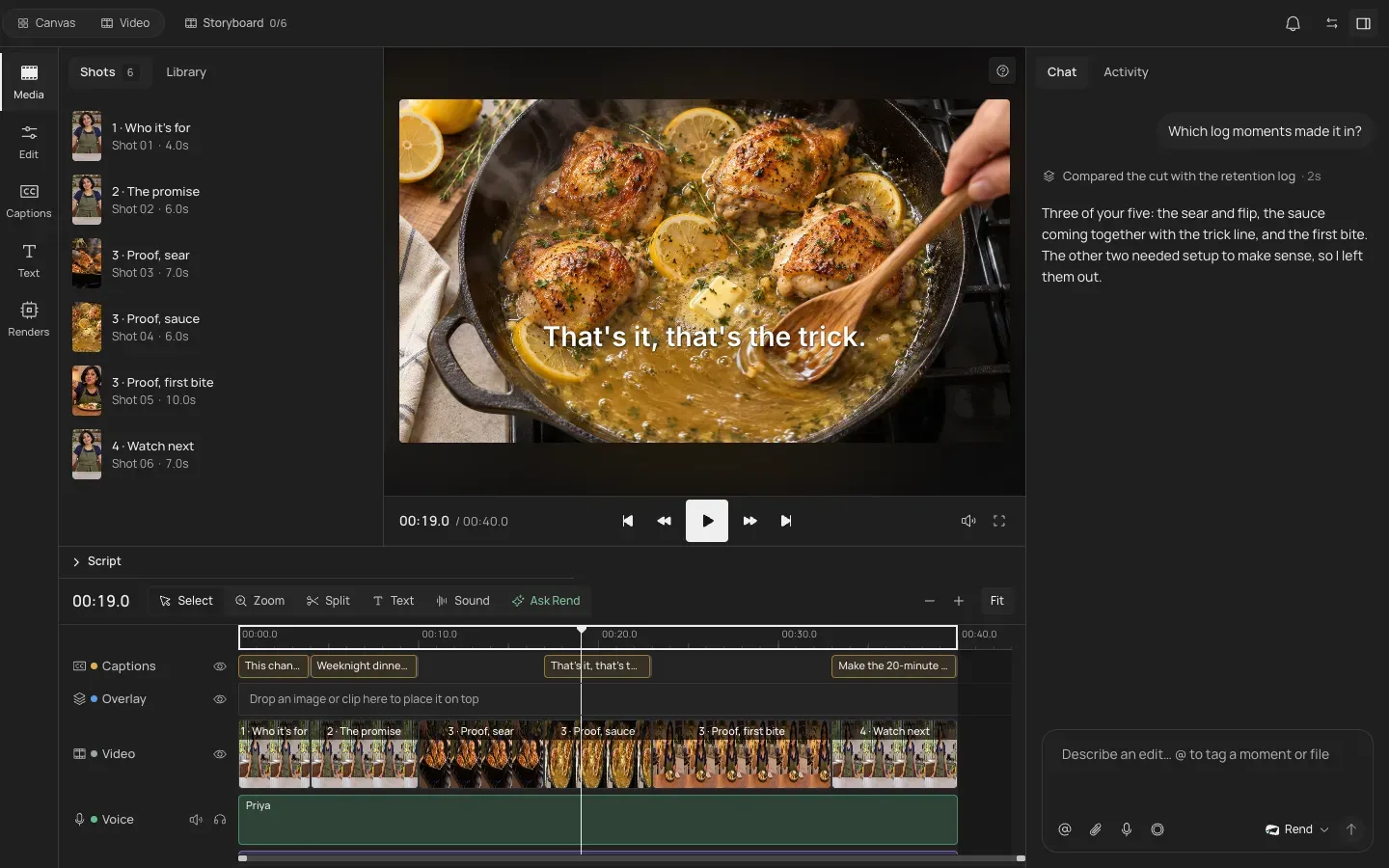
The four beats on the timeline, with the proof clips taken from the retention log.
Channel trailer examples and ideas: three filled scripts
Example 1: faceless history channel (45 s)
[0 to 5 s] VO over a slow push on an old map: "If you like history that plays out like a mystery, you're in the right place." [5 to 12 s] VO: "Every Friday, one forgotten event, told start to finish in under twenty minutes." [12 to 37 s] Proof: fort map reveal (top moment), carved word on the tree (spike), wall collapse reconstruction (top moment), the ship-log page turn (top moment), a one-line punch from the narration. [37 to 45 s] VO, end card with thumbnail: "Start with the lost colony. Then subscribe, because Friday's is stranger."
Example 2: cooking channel, on camera (40 s)
[0 to 4 s] To camera, in the kitchen: "This channel is for people who cook after work and have thirty minutes, tops." [4 to 10 s] To camera: "Weeknight dinners, one pan, real grocery store ingredients." [10 to 33 s] Proof: the sear and flip (top moment), sauce coming together in one shot (spike), the "that's it, that's the trick" line (top moment), plating and first bite (top moment). [33 to 40 s] To camera, end card: "Make the 20-minute chicken first. Subscribe and you'll have a new one every Tuesday."
Example 3: local trades channel, plumber or electrician (60 s)
[0 to 6 s] To camera in a van: "If you own a house and want to know what's worth fixing yourself, and what isn't, this is for you." [6 to 14 s] VO over job footage: "I'm a licensed plumber. I film real jobs and tell you what it costs and what you can do first." [14 to 50 s] Proof: the burst pipe reveal behind drywall (spike), the 2-minute shutoff valve fix (top moment), the honest "call a pro for this one" line (top moment), before and after of a water heater swap (top moment), one comment-worthy mistake from a previous owner (spike). [50 to 60 s] To camera, end card: "Start with the five things to check before you call anyone. Subscribe for one real job a week."
How long should a YouTube channel trailer be?
YouTube's help page sets no length. Aim for 30 to 60 seconds; go to 90 only if your proof clips need setup (stories, tutorials). Every extra second pushes the subscribe ask further from a visitor who can leave at any moment.
| Length | Beat 1 | Beat 2 | Beat 3 (proof) | Beat 4 | Best for |
|---|---|---|---|---|---|
| 30 s | 0 to 3 s | 3 to 8 s | 8 to 25 s, 3 to 4 clips | 25 to 30 s | Shorts-first channels, comedy, cooking |
| 60 s | 0 to 5 s | 5 to 12 s | 12 to 50 s, 5 to 7 clips | 50 to 60 s | Most channels, trades, reviews |
| 90 s | 0 to 6 s | 6 to 15 s | 15 to 78 s, 6 to 9 clips | 78 to 90 s | Story channels, documentaries, video essays |
To test your promise line, run a few versions through the free YouTube title tester first.
Captions and the edit
Burn in captions, or at least upload a caption file, since the voiceover carries the promise. Keep captions in the same style you use on your regular videos so the trailer looks like the channel. You can try looks with the caption style previewer.
A few cutting rules that hold up:
- Open on picture and voice at the same time. No logo sting first.
- Put the fastest proof clip first in beat 3 and the most emotional one last.
- Use one music bed under the whole thing and duck it under speech.
- End on a card with your channel name and the thumbnail of the "watch next" video.
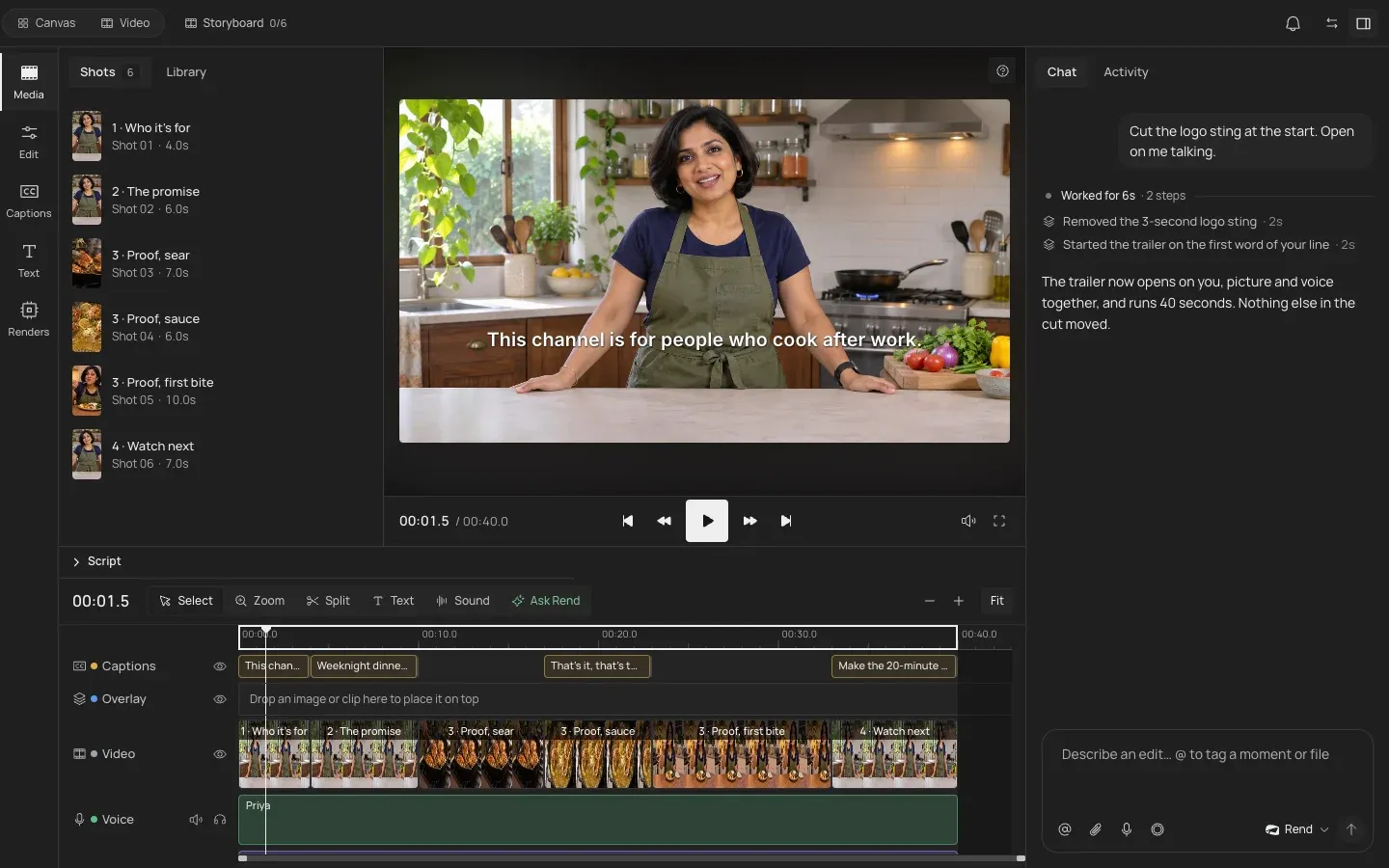
Opening on picture and voice together: one message removes the logo sting.
How to add a channel trailer on YouTube
These are the steps from YouTube's help page:
- Sign in to YouTube Studio.
- In the left menu, select Customization, then Home tab.
- Under Layout, click Add section, then Channel trailer.
- Select the video and click Publish.
Upload the trailer as a normal video first, then pick it in step 4.
To set the video for returning subscribers, follow the same path but choose Spotlight instead of Channel trailer, pick the video, and publish.
When to re-cut your trailer
Trailers go stale quietly. Re-cut yours when:
- A new video becomes one of your top performers. Its best moment belongs in beat 3.
- The channel's format or posting schedule changes, which breaks the promise beat.
- The "watch next" video is no longer your best entry point.
A quarterly check of your retention log is enough for most small channels.
How to make a channel trailer in Rend
Rend is an AI video agent that cuts on a real, editable timeline. For a channel trailer:
- Send your own video files for the 3 to 5 source videos, in chat, by email or through a web form.
- Paste your retention log (timestamps and what happens in each) and your beat 1, 2 and 4 lines.
- Ask for a 45-second channel trailer from the marked moments, with captions in your style and a channel-branded end card naming the video to watch next.
Rend transcribes the footage, cuts on exact transcript words, and puts captions, voiceover, music and the end card on separate tracks. If you don't want to record the beat 1 and beat 4 lines, it can narrate them in a voice you approve. Save your templates, caption style, voice and music bed in a brand kit and the trailer matches every episode.
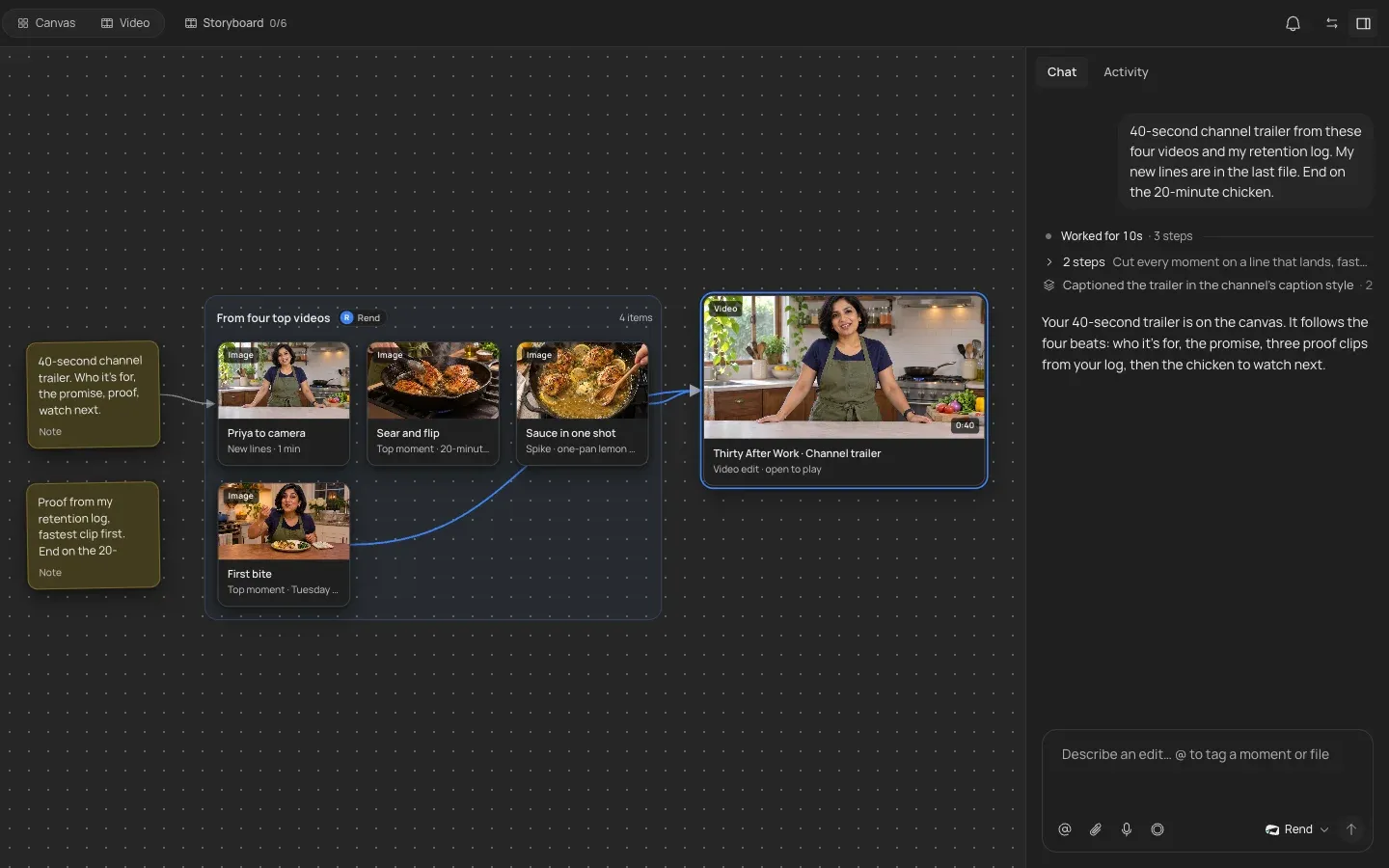
Four source videos and a retention log in, a 40-second channel trailer out.
Here is the same find-the-best-moments flow in Rend's podcast clipping demo, with a 72-minute episode dropped into the chat:
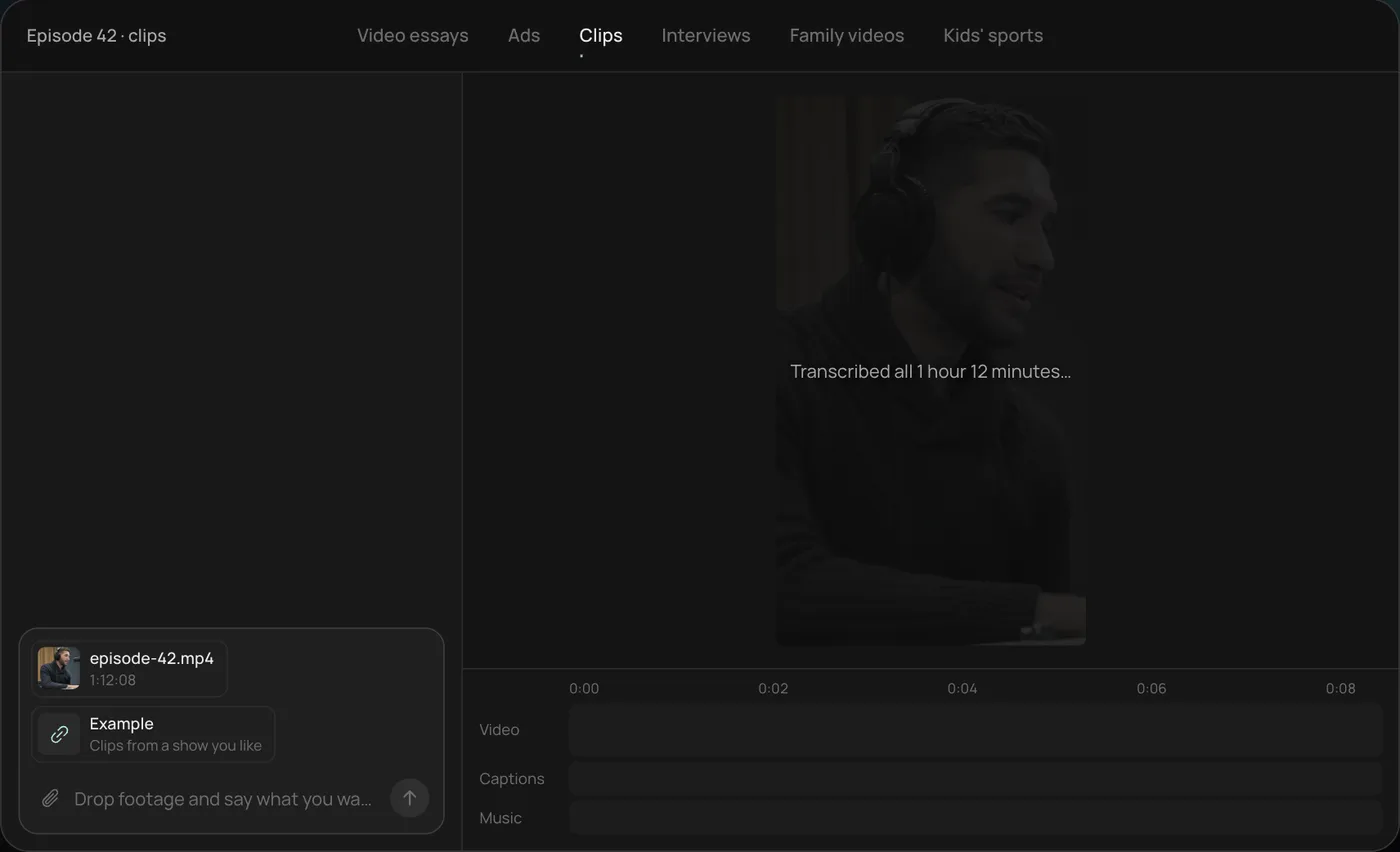
You can open the timeline and swap any clip yourself, or share a review link and leave notes on the frame. Editing is free; you pay only when Rend renders or generates something (see pricing). If you're building a channel without showing your face, the faceless YouTube channel guide covers the rest of the workflow, and YouTube video agent covers making full uploads the same way.
FAQ
Who sees my YouTube channel trailer?
Only people who haven't subscribed, at the top of your channel's Home tab. According to YouTube's help page, once a viewer has watched it, it isn't shown to them again.
How long should a YouTube channel trailer be?
30 to 60 seconds works for most channels. YouTube's help page gives no length, but every extra second is a second before the subscribe ask.
What should I put in a channel trailer?
Who the channel is for, what you post and how often, four to six of your best moments, and one video to watch next. Pull those moments from the top moments and spikes in your audience retention report.
Can I make a channel trailer without showing my face?
Yes. Use voiceover for beats 1, 2 and 4 and clips from your videos for the proof. The faceless history example above has no on-camera lines at all.
What's the difference between a channel trailer and a spotlight video?
The trailer is for non-subscribers and sells the channel. The spotlight (featured) video is for returning subscribers and points them at a specific upload.
How do I change my channel trailer?
Upload the new cut. In YouTube Studio, go to Customization, then Home tab, hover over the Channel trailer section and click Options, pick the new video, then click Publish.
Your best moments already exist; the trailer just collects them. Start a free Rend project, send your top videos and your retention notes, and get a trailer you can edit on the timeline.