How Do You Make a Slideshow Video With Photos and Music?
To make a slideshow video, choose 20 to 40 photos and a handful of 2 to 5 second video clips, put them in story order, pick one song, and cut on its beat: at a typical 120 beats per minute, a photo every 4 beats is 2 seconds on screen. Add slow push-ins or pans so the stills feel filmed, drop the clips in where the song lifts, and put a short title at the start and a held photo at the end. Any editor can do this (iMovie, CapCut, Clipchamp, Google Photos) or you can describe it to an AI video agent and review the result.
The most common mistake is treating a slideshow as photos only. Even four or five short clips, a laugh, a toast, a wave from a car window, turn a slideshow into something that feels like a film. This guide covers that mix, the beat math, pacing, motion and the phone versus desktop question. If your project is photos only and you want the AI side in depth, read video from photos with AI as well.
How to make a slideshow video in Rend, step by step
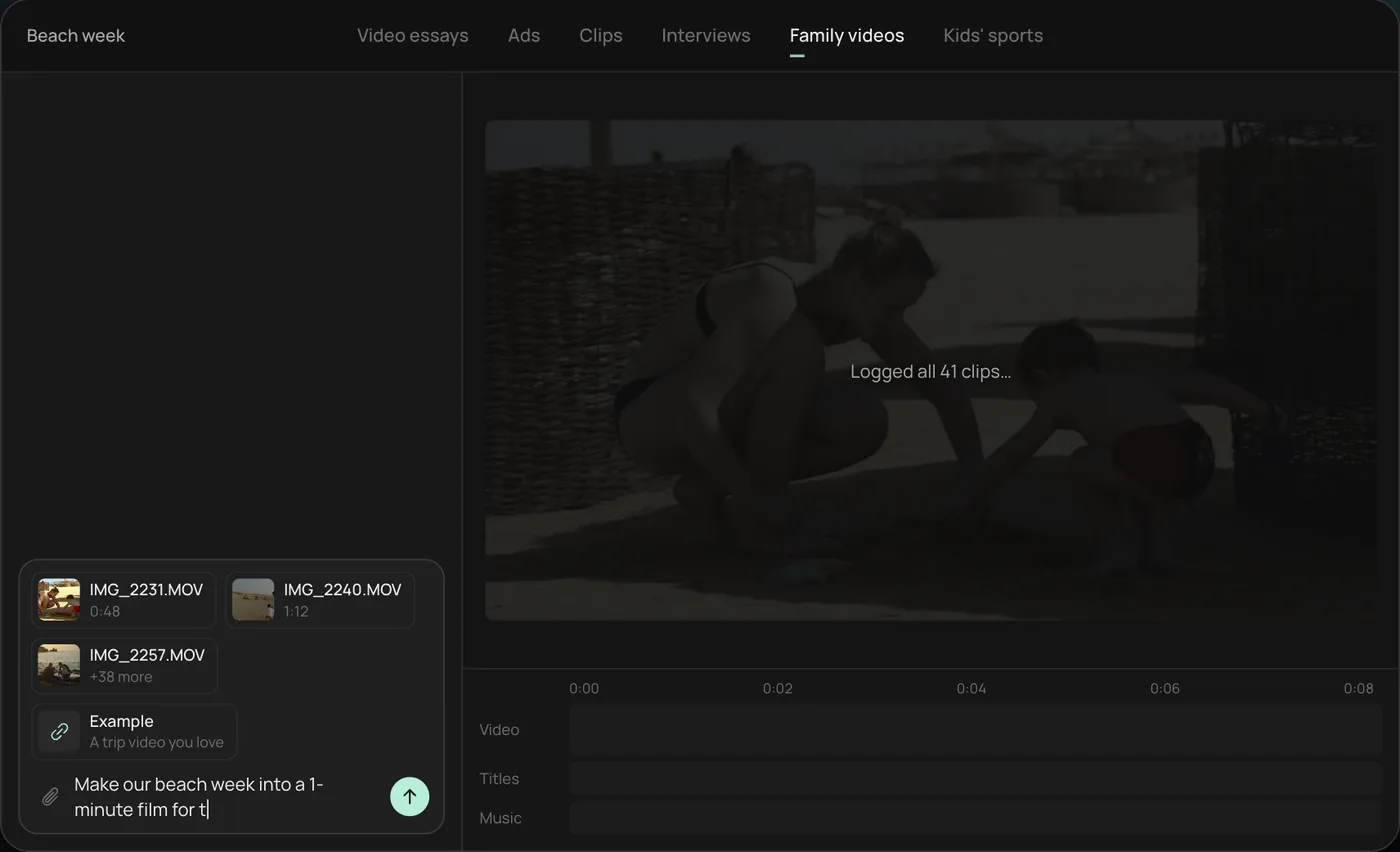
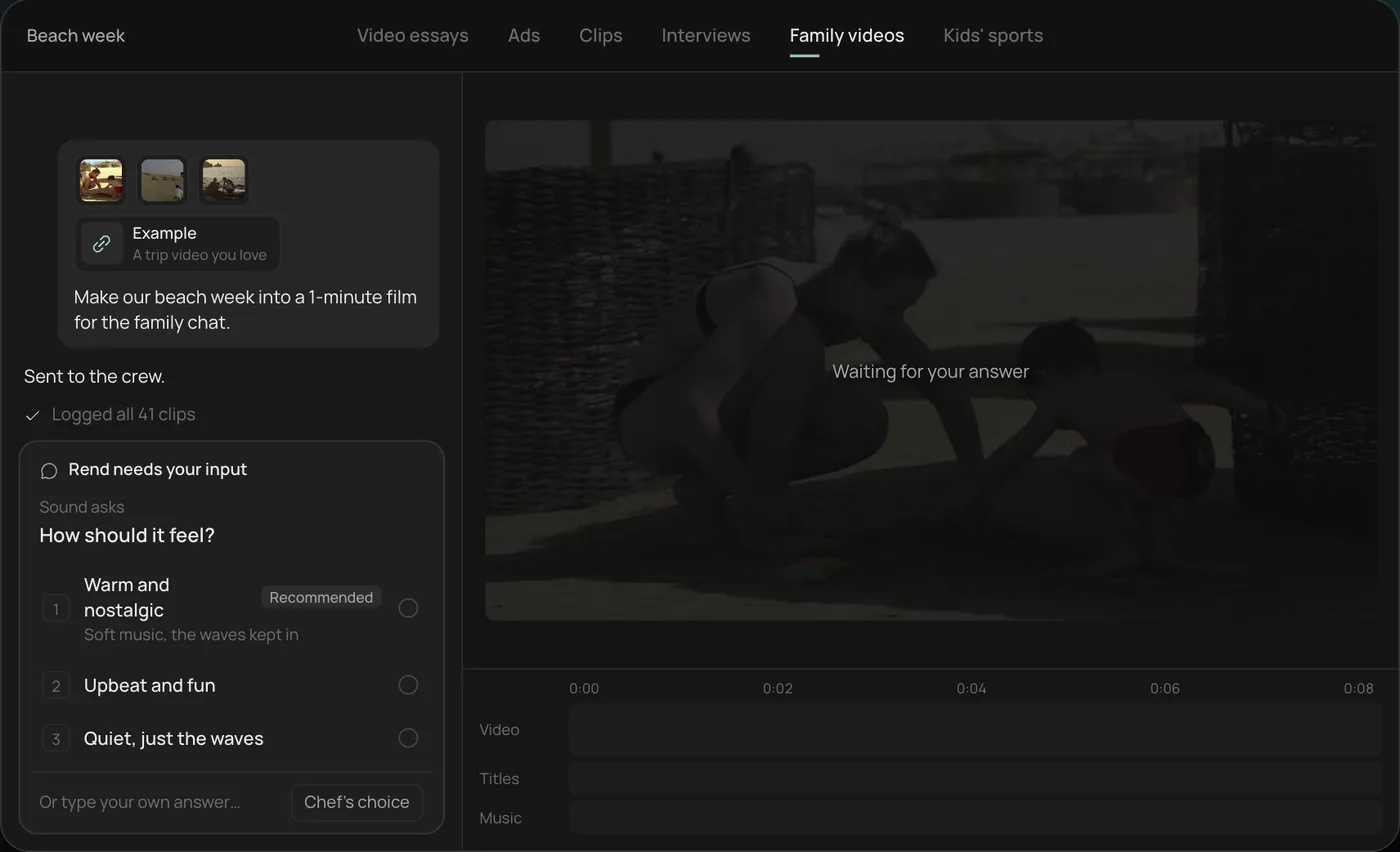
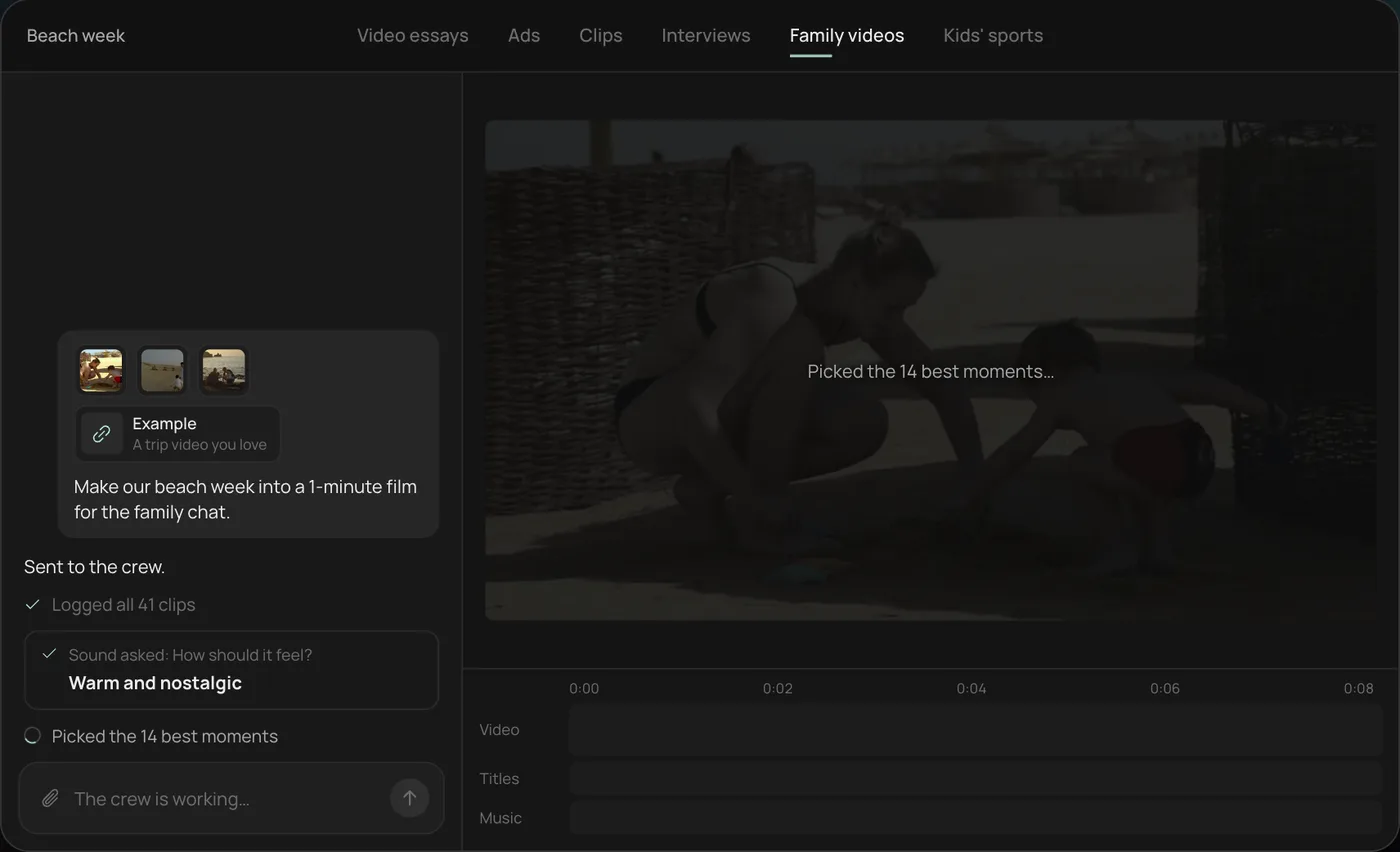
These screenshots come from Rend's demo of a family film from phone clips; a slideshow from your photos and clips works the same way.
1. Drop in your photos and clips. Add them straight from your camera roll (here 41 beach week videos) plus an example you like, then ask: "Make our beach week into a 1-minute film for the family chat."
2. Pick the feel. Rend asks how the film should feel and recommends warm and nostalgic.
3. Watch the crew work. The crew logs every clip and picks the 14 best moments, each step checked off in the chat.
4. Get the finished film. A 1-minute film cut to warm piano, with a "Summer 2026" title, lands on a real timeline with video, title and music on separate tracks.
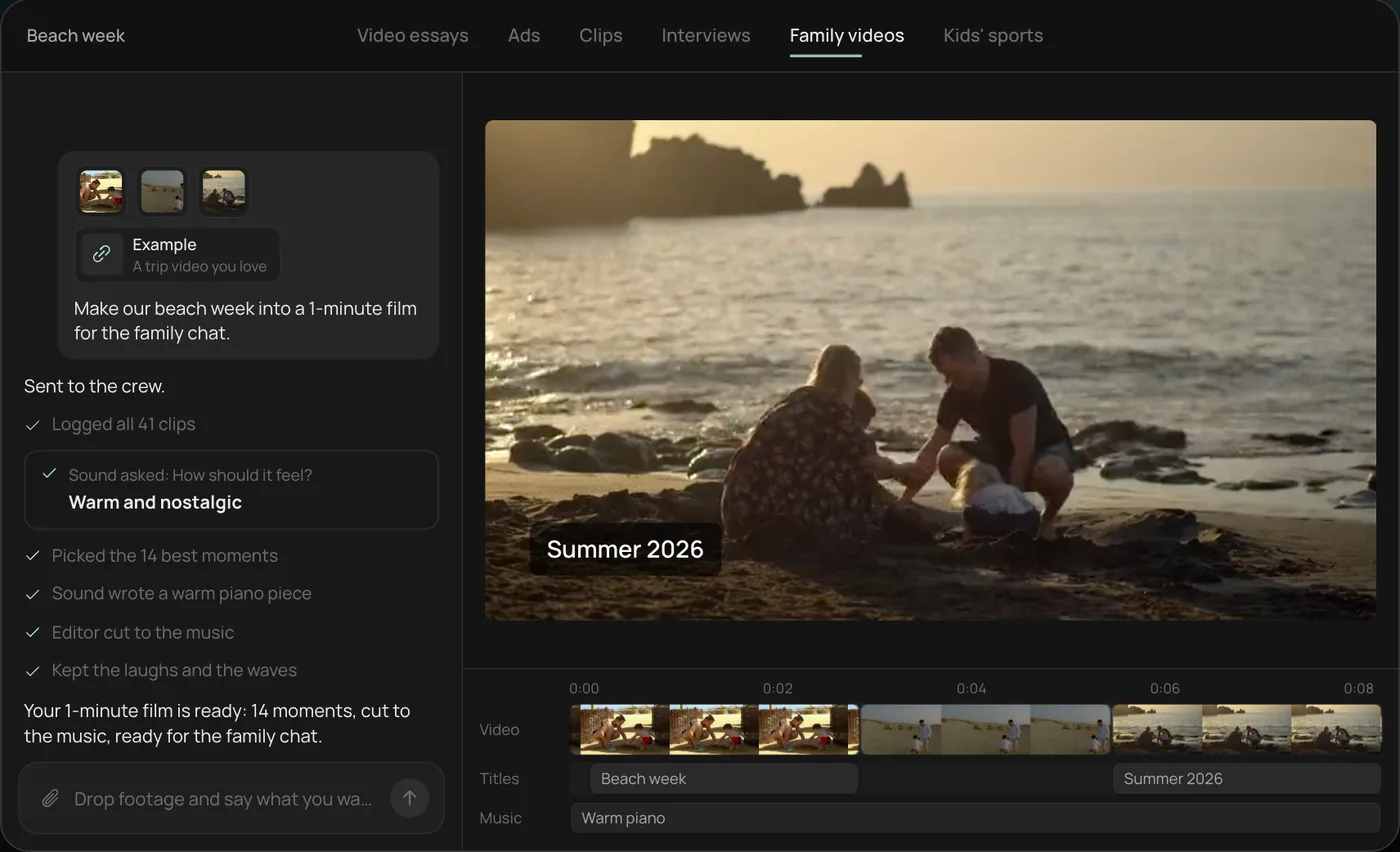
From there you can open the timeline and change anything by hand, share a review link for notes, or export. Start a free Rend project to try it on your own photos and clips.
Decide the length first
Length decides how many photos you need, and it is easier to cut to a number than to "see how long it ends up."
| Slideshow | Final length | Photos | Clips | Songs |
|---|---|---|---|---|
| Birthday for the group chat | 45 to 75 s | 15 to 25 | 3 to 5 | 1 |
| Graduation or retirement party screen | 3 to 5 min | 60 to 100 | 8 to 15 | 2 |
| Wedding rehearsal dinner (growing up) | 4 to 6 min | 80 to 120 | 5 to 10 | 2 to 3 |
| Memorial or celebration of life | 5 to 8 min | 80 to 150 | as many as you have with their voice | 2 to 3, slower |
| Year in review | 2 to 4 min | 50 to 90 | 10 to 20 | 1 to 2 |
A quick sanity check: length in seconds divided by your average hold gives the number of photos. Four minutes at 3 seconds a photo is 80 photos. If you have 300 favorites, the job is choosing, not adding.
Photos and clips together: how to mix them
Clips carry the moments that a photo can only hint at: sound, movement, a voice. Use them on purpose.
Keep clips short. Two to five seconds is plenty. Trim to the moment itself, the candle going out, the jump, the punchline. Most phone videos have one good stretch in a 30-second recording.
Let one or two clips keep their sound. A kid shouting "Happy birthday Grandpa!" over the music is the part everyone remembers. Duck the music under it for those few seconds, then bring it back. The rest of the clips can run silent under the song.
Place clips where the energy changes. The song's chorus, a key change, the first big drum hit: that is where a clip of motion lands best. Photos can sit in the verses.
Don't mix orientations carelessly. Vertical phone clips in a 16:9 slideshow get black bars or a blurred fill. Pick your frame first (16:9 for a TV or projector, 9:16 for Reels and Stories) and crop clips to fit. Accept a softer crop over a tiny vertical strip in the middle of a big screen.
Match the look. A 2009 point-and-shoot photo next to a 2026 phone clip shows the jump in quality. That's fine for a memorial, where the years are the story. For a single event, avoid jumping between very different sources in a row.
Time the cuts to the music
This is the step that makes a slideshow feel edited rather than assembled.
Find the song's tempo (search "<song name> BPM" or tap along with a free tap-tempo page). Then one beat lasts 60 divided by the BPM, in seconds.
| Tempo | One beat | Photo every 2 beats | Every 4 beats | Every 8 beats |
|---|---|---|---|---|
| 80 BPM (ballad) | 0.75 s | 1.5 s | 3 s | 6 s |
| 100 BPM | 0.6 s | 1.2 s | 2.4 s | 4.8 s |
| 120 BPM (pop) | 0.5 s | 1 s | 2 s | 4 s |
| 140 BPM (upbeat) | 0.43 s | 0.86 s | 1.7 s | 3.4 s |
Pick one rhythm for most of the song, then break it on purpose. Cut every 4 beats in the verse, every 2 beats in the chorus, and hold one photo for 8 beats when the song drops out. That variation is what people feel as pacing.
Two practical notes. First, cut slightly before the beat (a frame or two) rather than after; cuts that land late feel sluggish. Second, line up the big change in the song with the big change in the story: the move to a new city, the wedding itself, the first grandchild.
How long each photo should stay up
The beat table gives the rhythm; the content decides which end of it you use.
- Faces and groups: 3 to 4 seconds. People look for themselves and the people they know.
- Places and scenery: 2 seconds, or less if there are several in a row.
- Photos with text (a diploma, a sign, a handwritten card): 4 to 5 seconds, or nobody reads it.
- The opener and the closer: longer than anything else. The last photo can hold 6 to 8 seconds as the music fades.
If a section feels slow, cut photos rather than shortening every hold. Ten photos at a comfortable 3 seconds beat fifteen rushed at 2.
Ken Burns motion that doesn't look cheap
Slow motion on stills is named after the documentary filmmaker who made it famous, and most editors have it built in (iMovie calls it the Ken Burns effect). Done well, it makes a photo feel like a camera move.
- Move toward the point of interest. Push in on the face, not the empty corner.
- Keep it slow. Over 3 seconds, a 5 to 10 percent zoom is plenty. Faster reads as a screensaver.
- Alternate direction. In, out, pan left, pan right. Four push-ins in a row feel mechanical.
- Skip motion on group shots that are already tight. Zooming crops someone's head off.
- Use one transition style. Straight cuts on the beat, with a soft dissolve between sections. Page curls, spins and cube wipes are the fastest way to make a slideshow look dated.
Start with a high-resolution file. Motion on a 600-pixel image pulled from a group chat gets soft fast, especially on a TV. Ask for originals, or keep those photos still.
Phone or desktop: which to use
Both work. The right one depends on the length and how many people's photos you're gathering.
| Tool | Where | Good for | Watch out for |
|---|---|---|---|
| iPhone Photos Memories | iPhone | A 1-minute slideshow in seconds from an album | You pick from its suggestions; limited beat control |
| Google Photos highlight videos | Android, iPhone, web | Quick family montages with templates | Few controls over timing and motion |
| CapCut | Phone, desktop, web | Beat sync, vertical social slideshows | More tools sit behind Pro than used to; check music rights before posting |
| iMovie | Mac, iPhone, iPad | Longer slideshows, Ken Burns, free | You make every decision by hand |
| Clipchamp | Windows, web | Free editing on a PC; Microsoft's help page says 1080p is the largest free export resolution | 4K and premium stock need a Microsoft 365 plan |
| Rend | Browser, phone uploads | Describe it, review it, change it on a timeline | You pay when it renders or generates |
A phone is fine up to about two minutes. Past that, a bigger screen makes ordering 80 photos much less painful, and dragging on a desktop timeline is faster than long-pressing on glass. For a five-minute graduation slideshow, sort and rename the files on a computer even if you edit elsewhere.
Gathering photos from everyone
For any slideshow about a person, the best photos are on other people's phones. Collect early: a week before is the minimum for a party, and a memorial will often come together in a couple of days, so ask on day one.
In Rend, open your project and choose Add footage. There is a link and a QR code for the project's upload page. Text the link to the family group, and each person picks photos and videos from their phone and sends them at full quality, no app or account needed. Anyone with the link can add files, so share it only with the people you mean. The full walkthrough is in send videos from your phone.
When files arrive, sort them into rough decades or chapters before you choose. It's much easier to pick the best eight photos from 1998 than the best 80 from everything.
Describing a slideshow to an AI video agent
If you'd rather review than edit, write the brief like you'd brief a friend who edits. A good one names the length, frame, order, music and the moments that must be in it:
4-minute slideshow for Dad's retirement party, 16:9 for the projector. Mostly chronological: childhood, the Navy years, us kids, the shop, grandkids. Open on the photo of him at the shop counter, title "Thirty-One Years." Keep the clip of him singing at the 2019 cookout with his voice up. Warm, slightly upbeat music, a quieter section for the Navy years. End on the family photo from Easter, held.
Rend's crew logs every photo and clip, orders them, adds motion and titles, makes original music on its own track (with the music ducked under any voice you kept), mixes it and checks its own work. Then you get a review link. The whole family can watch it and leave notes on the frame: "swap this one, his eyes are closed," "Aunt Marie is missing from the grandkids section." The agent reads every note and makes the fix. If you've seen a slideshow style you love, send it as a reference; see recreate a video you like.
Editing in Rend is free; you pay only when it renders or generates something. See pricing and the tools the agent uses.
Music, rights and where it will play
If the slideshow only plays at a private party, most people use a favorite song. If you'll post it publicly, commercial tracks can get the video muted or blocked, and that usually happens after you've shared the link. Original music avoids the problem; AI music for videos explains how that works.
Export for where it plays. A projector or TV wants 16:9 at 1080p, and a local file on a laptop or USB stick, not a stream on venue Wi-Fi. Test it on the actual screen an hour before; check that the sound is coming out of the speakers, not the laptop. For Reels and Stories, make a separate 9:16 cut of 30 to 60 seconds instead of cropping the long version.
For bigger family projects, how to edit home movies covers clip selection and structure for trips and old footage, and wedding highlight reel covers the other big event slideshow.
FAQ
How many photos do I need for a 3-minute slideshow?
About 50 to 70 at 2.5 to 3.5 seconds each, plus a few short clips. Fewer is better than more. If you have 200, choose the 60 that show faces and feeling.
What is the best song length for a slideshow?
Pick the length of the slideshow first, then a song close to it. Most pop songs run 3 to 4 minutes; for a 6-minute slideshow use two songs and change at a natural break in the story.
Should I use transitions between every photo?
No. Straight cuts on the beat look the most professional. Use a soft dissolve between sections or for slow songs, and skip the novelty transitions.
Can I make a slideshow video for free?
Yes. iPhone Memories, Google Photos, iMovie and Clipchamp's free tier all make slideshows at no cost. In Rend, editing is free and you pay only when it renders or generates something.
How do I add video clips to a photo slideshow?
Trim each clip to its 2 to 5 best seconds, place clips where the music lifts, and keep the sound up on one or two where someone speaks. Crop vertical clips to your frame so they don't sit in black bars.
What's the best format for a slideshow on a TV or projector?
A 16:9 MP4 at 1080p, played from a local file. Test it on the real screen and speakers before the event.
Pick the photos and one song tonight, then start a free Rend project and describe the slideshow you want. You'll have a first cut to show the family before the party.