How Do You Remove Filler Words From Video Without Jump Cuts?
To remove filler words from video, transcribe it, search the transcript for "um," "uh," repeated words and false starts, delete them in the text so the editor cuts the video at those exact words, and shorten long pauses to about a third of a second instead of removing them completely. Then hide the visible jump cuts on camera: cover them with b-roll, switch to a second angle, or punch in on alternate cuts. Leave a few fillers in. Speech with every pause and "um" stripped out sounds rushed and slightly fake, and in interviews it can change what someone meant.
The rest of this guide is how editors actually do it on interviews, talking-head videos and podcasts: what to cut, how tight to go, how each fix looks on screen, and the cases where you should not touch a thing.
How to remove filler words in Rend, step by step
These screenshots come from Rend's demo of cutting a 47-minute interview into a 4-minute feature; cleaning the ums and pauses out of your own footage works the same way.
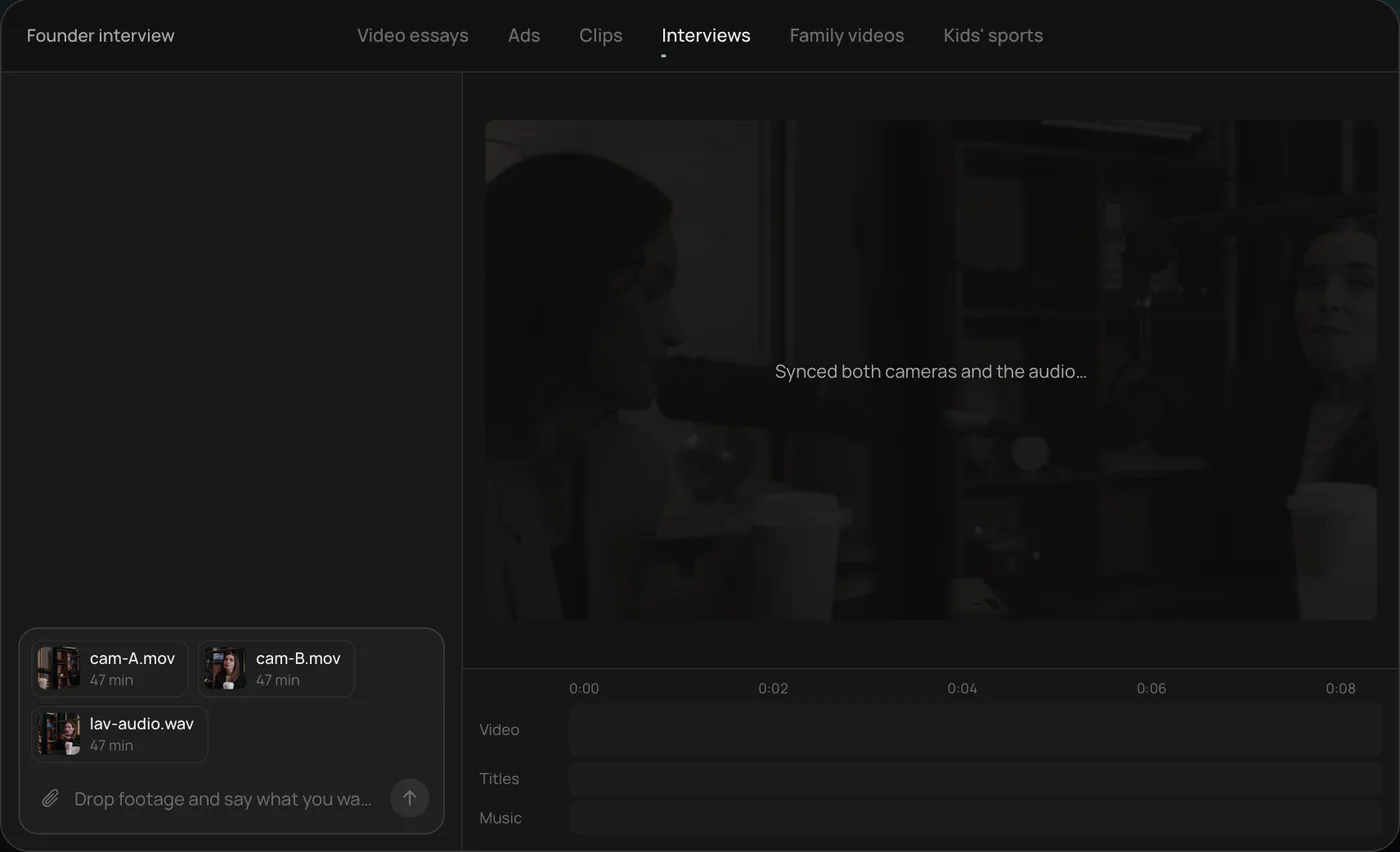
1. Drop in your footage. Add your files (here two camera angles and a lav mic recording) and say what you want: "Cut this interview into a 4-minute feature like this series." Add "remove the ums and tighten long pauses" to the same message.
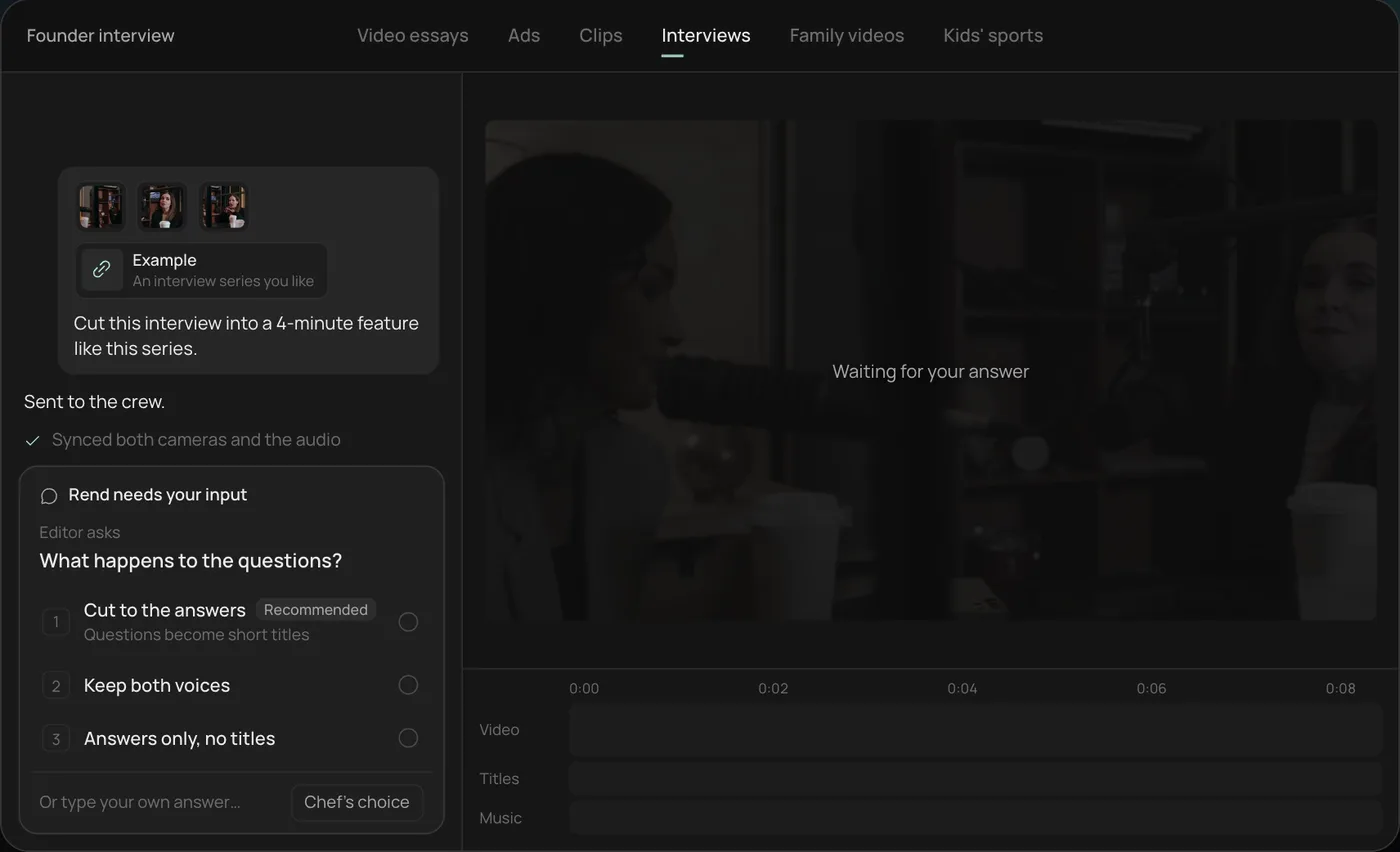
2. Answer one question. Rend asks what should happen to the interviewer's questions and recommends cutting straight to the answers.
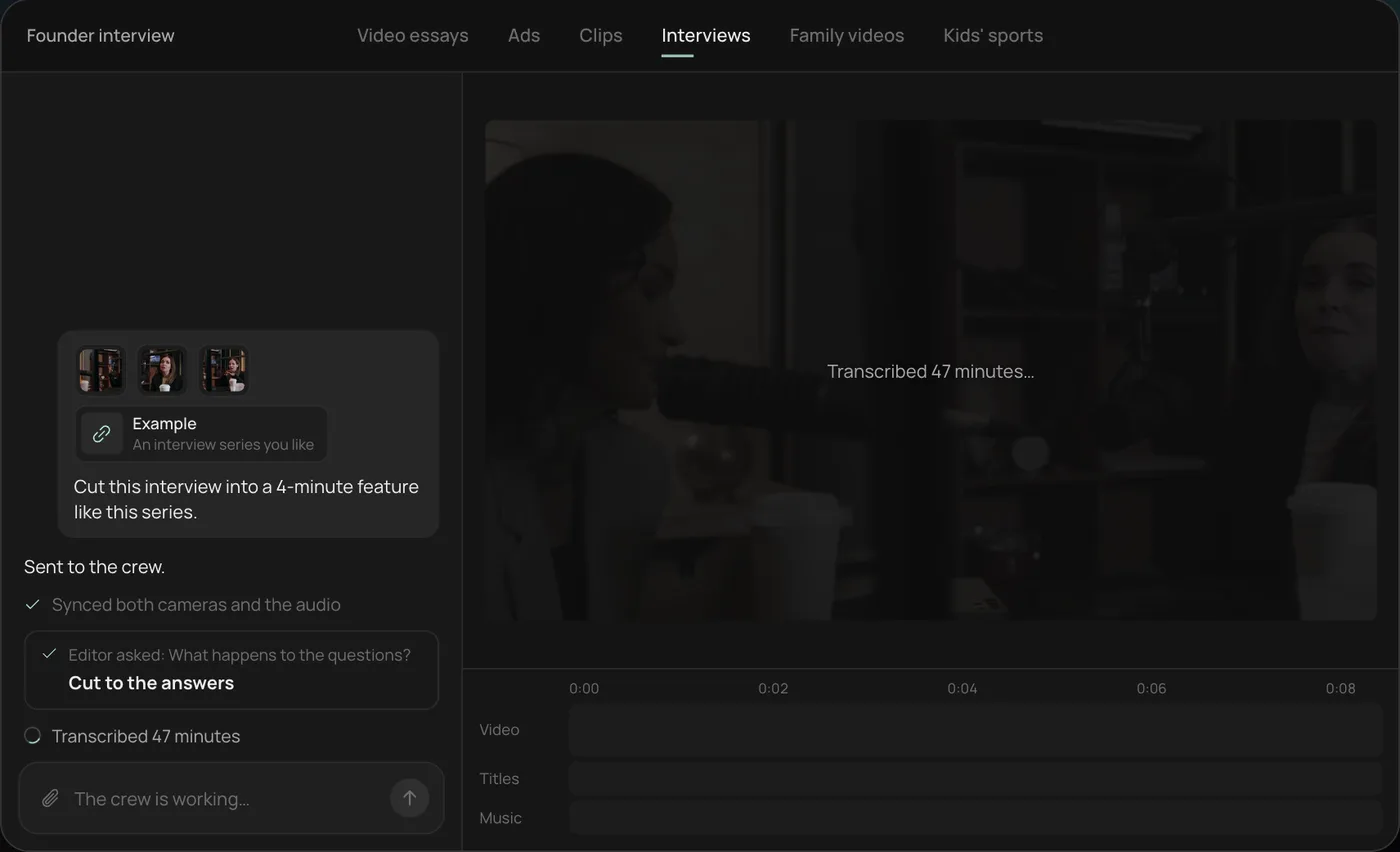
3. Watch the crew work. The crew syncs both cameras with the audio and transcribes all 47 minutes, each step checked off in the chat.
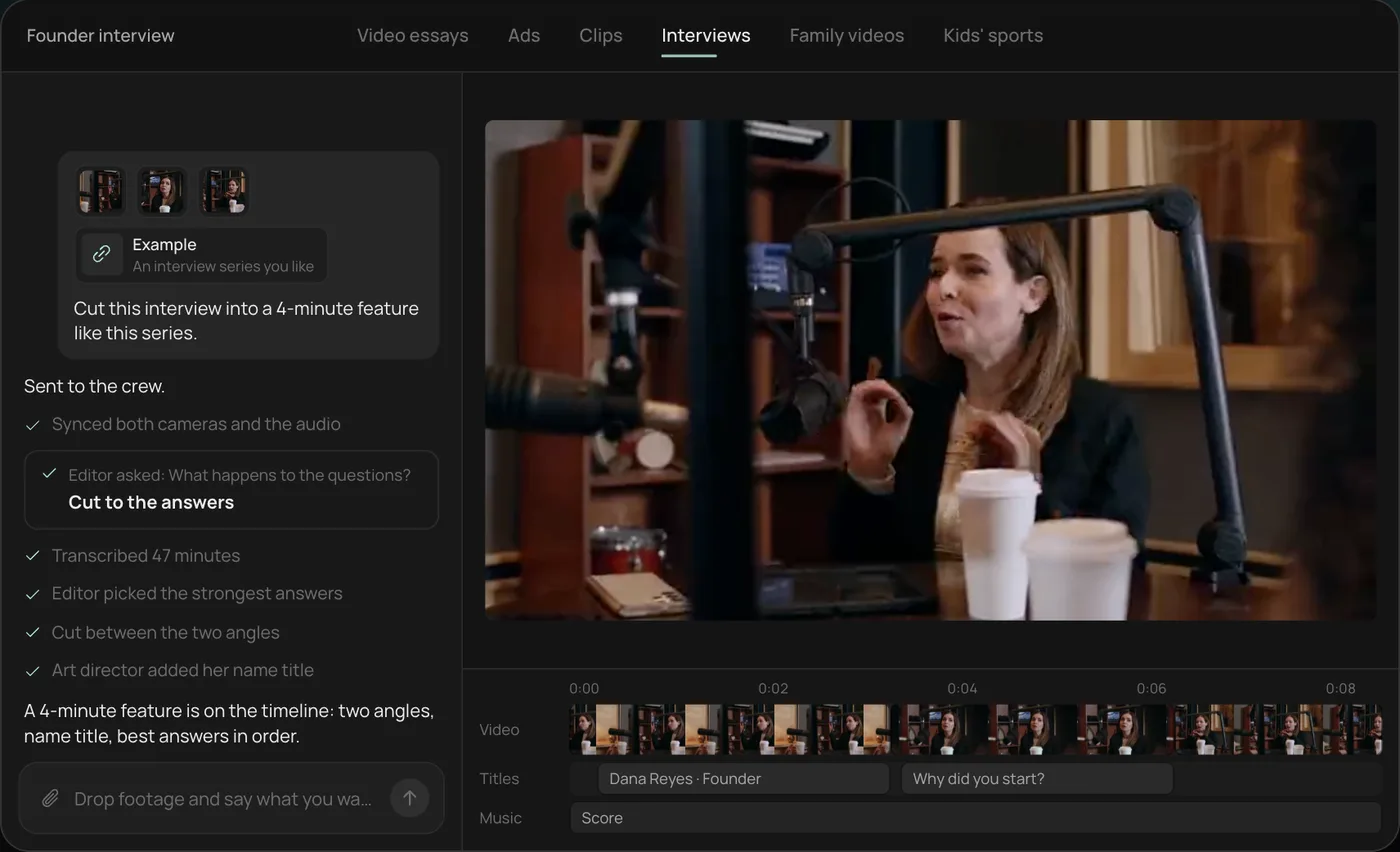
4. Get the finished cut. A 4-minute feature lands on a real timeline with both angles, a name title and the best answers in order, on separate tracks.
From there you can open the timeline and change anything by hand, share a review link for notes, or export. Start a free Rend project to try it on your own footage.
What counts as a filler
People mean different things by "filler," and the cleanup goes better if you decide up front which of these you are going after.
| Type | Examples | Usually cut? |
|---|---|---|
| Sounds | um, uh, er, mm | Most of them |
| Filler words | like, you know, I mean, sort of, basically, so (at the start of an answer) | Some; they often carry meaning |
| Repeated words | "the the," "I, I think" | Yes |
| False starts | "We tried, well, the first thing we did was" | Yes, cut back to the clean start |
| Long pauses | Silence over about 0.7 s inside a thought | Shorten, don't delete |
| Breaths | Audible inhales between sentences | Lower them, keep most |
| Thinking pauses | A beat before an important answer | Usually keep |
"Like" and "so" are the trap. Automatic tools flag them every time, but "it looked like a warehouse" uses "like" as a real word. Read before you delete.
Why you cut from the transcript, not the waveform
You can remove fillers on a waveform. An "um" is a short, smooth bump between sharper word shapes, and with practice you can spot them. It takes a long time, though. A 10-minute talking-head video might have 60 to 100 fillers, and finding each one by ear means playing the whole thing at least twice.
A transcript turns it into reading. Search for "um," see every one at once, and delete them in the text. Text-based editors then cut the video at the word boundaries for you. Several editors do this now. According to their help pages, Descript detects ums, uhs and phrases like "you know" and lets you remove or keep each one, Adobe Premiere's Text-Based Editing can detect pauses and bulk-delete fillers and silences, and CapCut's transcript-based editing lets you delete filler words and speech gaps from the text.
The catch is the same in every tool: bulk "remove all" is fast and usually wrong somewhere. Treat the automatic list as suggestions and scan it.
How tight to go on pauses
Removing pauses entirely is the most common mistake. Speech with zero space between sentences sounds like a voicemail sped up, and viewers feel it even if they cannot say why.
These are the numbers we work to on talking-head and interview cuts:
- Between sentences: leave about 0.3 to 0.5 seconds.
- Between paragraphs or topic shifts: 0.6 to 1 second.
- Before a punchline or an important answer: keep the natural pause, even if it is over a second.
- Inside a sentence: cut anything over about 0.7 seconds down to 0.2 to 0.3.
Descript and Premiere both let you set a threshold for which gaps count as long. Start conservative and tighten by ear.
Making the cut points invisible
Audio is the easy half. A cut on a word boundary with a 1 to 2 frame crossfade on the audio removes clicks, and a little room tone under the cut stops the background noise from dropping out. Record 20 seconds of silence in the room at the start of every shoot for exactly this.
Video is the hard half. On a locked-off talking head, every cut is a jump: the head shifts a few pixels and the viewer sees it. You have four ways to deal with it.
| Fix | How it looks | Best for | Watch out for |
|---|---|---|---|
| Leave the jump cut | Visible jump, fast pace | YouTube, Shorts, casual explainers | Too many in a row looks frantic |
| Punch-in | Alternate cuts at 100% and about 110 to 120% scale | Single-camera talking heads | Needs 4K source to stay sharp at 1080p |
| Second angle | Cut to the other camera at each edit | Interviews, podcasts | Both cameras need matching color |
| Cover with b-roll | Picture of what they are talking about over the cut | Documentary, brand, testimonial | B-roll must match the words, not just fill |
Jump cuts are fine on YouTube. Audiences there expect them, and a quick jump reads as pace. On a brand video or a customer testimonial, though, a jump every four seconds feels like something is being hidden. That is where b-roll and a second angle earn their keep. If you need shots to cover cuts, our guide to AI b-roll shows what works and what looks fake.
A good habit: count your cuts per minute after cleanup. More than 8 to 10 visible jumps a minute on a single camera, and you should be covering some of them.
When to leave filler words in
Some fillers belong in the cut.
Interviews and testimony are the big one. If removing an "um" and a pause makes a hesitant answer sound confident, you have changed what the person said. For journalism, documentary and anything legal or medical, cut fillers only where it does not change tone or meaning, and never splice words from different answers into one sentence.
Humor is another. Comic timing lives in the pauses. Cut the beat before a punchline and the joke dies.
Emotional moments too. When someone stops to collect themselves, that pause is the moment. Keep it.
And personality. Some creators say "so" or "right" as a signature. Removing every one makes them sound like someone else. Ask, or cut only the ones that slow the start of a sentence.
A worked example
Here is how the numbers play out on an illustrative case: a 9-minute single-camera explainer, recorded in one take with a lav mic. Say the transcript shows 71 "um" or "uh," 23 repeated words, 6 false starts and 41 pauses over 0.7 seconds.
A sensible cleanup takes out 64 of the 71 sounds (the seven that sit before key points stay), all 23 repeats and all 6 false starts, and shortens the long pauses to 0.3 seconds, which takes the video from about 9:04 to around 7:50. That leaves about 95 cut points on one camera, around 12 a minute, which is too many visible jumps for a brand channel. So give every second cut a 115% punch-in, cover the cuts in the product section with screen recordings, and rebuild captions from the cleaned transcript so the text matches the audio.
Captions after cleanup
If you add captions after removing fillers, generate them from the cleaned audio, not the original transcript. Otherwise "um" can show up in the captions with no sound behind it, or the timing drifts by the length of every cut. Word-timed captions that follow the edit are the safest. Our guide to adding captions covers styles and placement, and the caption style previewer lets you try looks.
Where Rend fits
Rend is an AI video agent that edits from the transcript. Send your footage through chat, email or the web form and say what you want: "Remove the ums and false starts, keep pauses to about a third of a second, keep the ones before her big answers, cover jump cuts with the second angle." A crew of specialist agents transcribes with speaker labels, cuts on exact transcript words, and builds the edit on a real, editable timeline with captions on their own track, always editable. It checks its own work, and it can generate b-roll for cuts you want covered.
Because it is a real timeline, you can open any cut and put an "um" back by hand in a second. Share a review link and the person on camera can mark anything that sounds wrong; the agent reads every note and fixes it on the same link.
Descript is very good at exactly this job if you want to do it yourself, word by word in a document view, and its filler-word controls are well developed. Our Descript vs Rend comparison goes through the tradeoffs, and Descript alternatives covers the others. Rend fits when you want the cleanup done as part of the whole edit. Editing is free, and you pay only when Rend renders or generates something; see pricing.
FAQ
Can I remove filler words from video automatically?
Yes. Descript, Premiere's Text-Based Editing and CapCut all detect filler words from a transcript, and Rend removes them as part of an edit. Review the list before you remove everything, since words like "like" and "so" are often real words.
How do I remove "um" without a jump cut?
Cover the cut with b-roll, cut to a second camera angle, or punch in to a tighter frame on alternate cuts. On audio, add a 1 to 2 frame crossfade and some room tone.
Should I remove all filler words?
No. Speech with every filler and pause removed sounds rushed. Keep pauses before important points, in jokes and in emotional moments, and be careful in interviews where removing hesitation could change meaning.
How long should pauses be after editing?
Roughly 0.3 to 0.5 seconds between sentences and up to a second between topics. Keep natural pauses before punchlines and big answers.
Does removing filler words affect captions?
It can. Generate captions from the cleaned audio so they match the edit, or regenerate them after cleanup.
Clean up one video
Take a talking-head video you already have, send it to Rend and ask it to remove the ums and tighten the pauses, keeping the ones that matter. You can do it on the free plan and check every cut before you pay to render.